
Configure a VLAN Trunk on a Hyper-V VM
- Last updated: May 12, 2026

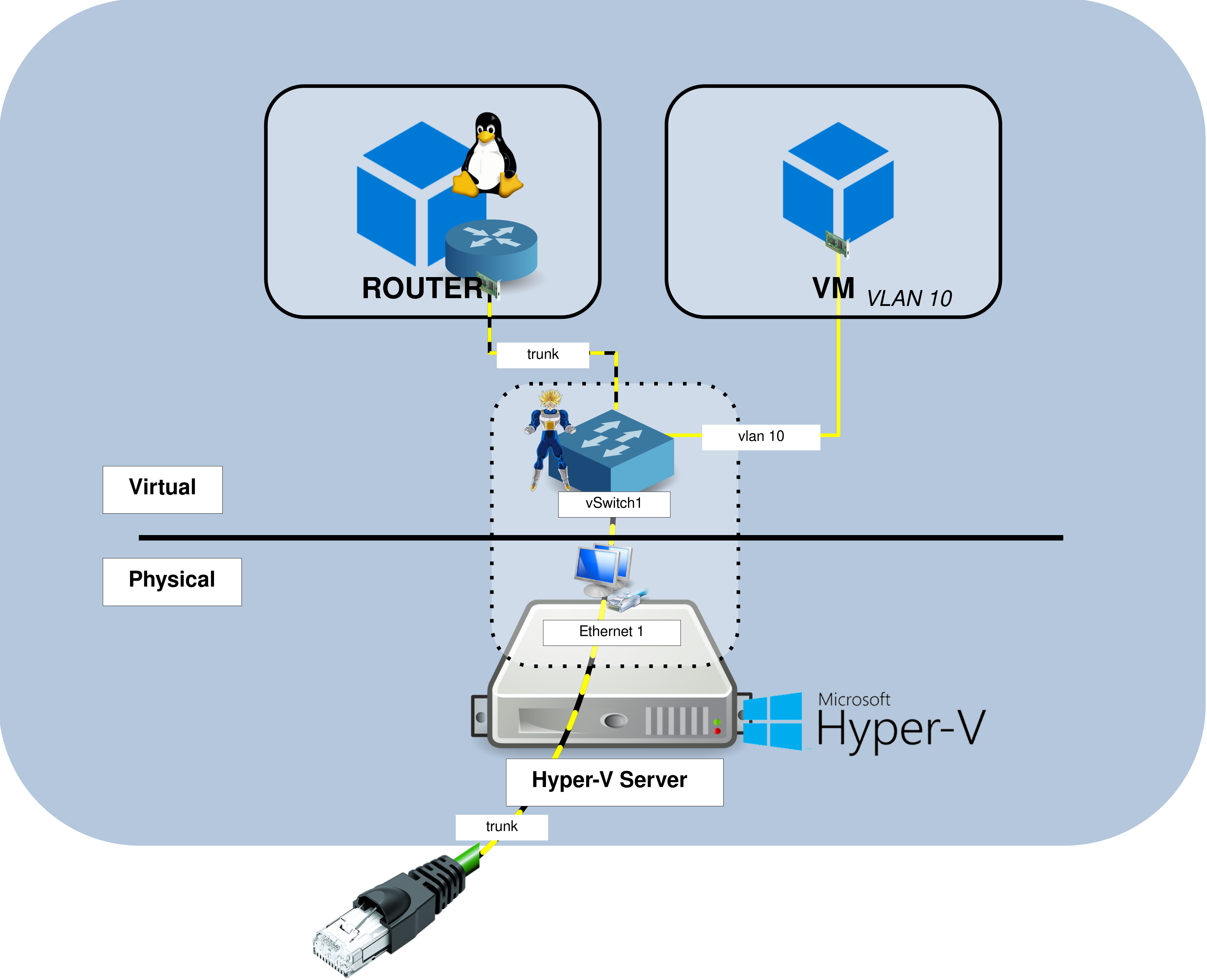
On a Microsoft Hyper-V hypervisor, I needed to configure a VLAN trunk on a virtual machine used as a Linux router. The goal was to allow this VM to route traffic between other virtual machines and external workstations located on different subnets.
This configuration is not exposed directly in the standard Hyper-V graphical interface. To enable VLAN trunking on a VM network adapter, we need to use PowerShell (Don't panic, it's only two lines!).
In this example, my Hyper-V host is running Windows Server 2019 (yes, I live in the past…) but the same approach should also apply to more recent versions of Windows Server. Although the VM is used here as a Linux router, this configuration can be useful in any situation where a Hyper-V virtual machine needs access to multiple VLANs.
Network Architecture Diagram
In this example, a Linux router VM is connected to the Hyper-V virtual switch through a VLAN trunk. A second virtual machine is placed on VLAN 10 and uses the Linux router VM to communicate with other networks.
Linux Router Configuration
On the Linux router VM, we first need to enable VLAN support and IPv4 forwarding. In this example, the trunk interface is eth0, and the VLAN interface will be created for VLAN 10.
- Load the 802.1Q kernel module and enable IPv4 forwarding:
root@host:~# modprobe 8021qroot@host:~# echo 1 > /proc/sys/net/ipv4/ip_forward- Create a VLAN subinterface on
eth0for VLAN 10:
root@host:~# ip link add link eth0 name eth0.vlan10 type vlan id 10- Bring up the new
eth0.vlan10interface:
root@host:~# ip link set eth0.vlan10 up- Assign an IP address to the
eth0.vlan10interface:
root@host:~# ip addr add 192.168.10.254/24 dev eth0.vlan10Enable VLAN Trunking on Hyper-V
Now that the Linux router VM is configured, we need to enable VLAN trunking on its Hyper-V network adapter. This setting is not available in the standard Hyper-V graphical interface, so it must be configured from an elevated PowerShell console.
- List the network adapters attached to the virtual machine named router and retrieve the MAC address of the adapter on which you want to enable VLAN trunking:
PS C:\ > Get-VMNetworkAdapter -VMName router

Name            IsManagementOs VMName  SwitchName MacAddress   Status IPAddresses
----            -------------- ------  ---------- ----------   ------ -----------
Network Adapter False ROUTER vSwitch1 0015DEADBEE5 {Ok} {}- Using the MAC address retrieved above, enable VLAN trunking on the VM network adapter:
PS C:\ > Get-VMNetworkAdapter -VMName router | Where-Object { $_.MacAddress -eq '0015DEADBEE5' } | Set-VMNetworkAdapterVlan -Trunk -AllowedVlanIdList 1-100 -NativeVlanId 1Configure VLAN Access on the VLAN 10 VM
Now that VLAN trunking is enabled on the Linux router VM, we can configure another virtual machine to communicate with the router through VLAN 10.
- Open the settings of the virtual machine, go to the Network Adapter section, connect it to vSwitch1, enable Virtual LAN identification, and set the VLAN ID to 10:
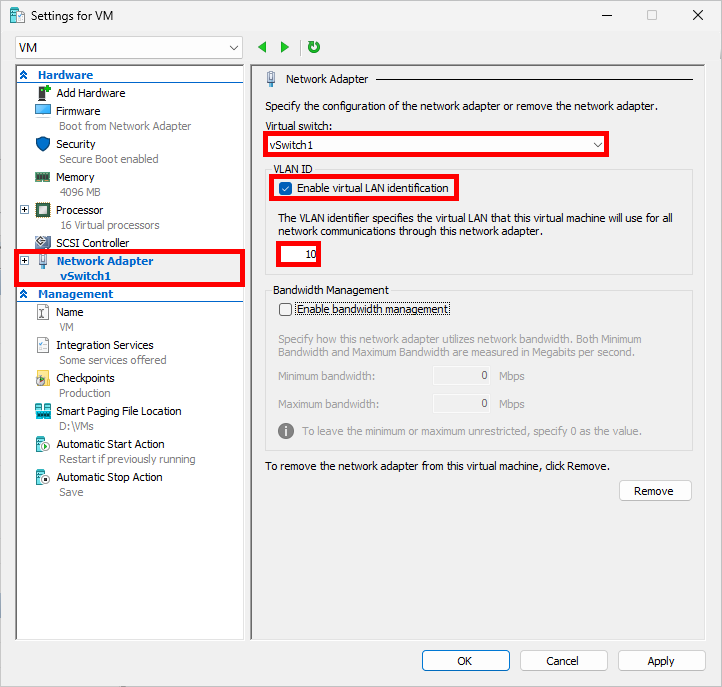
The virtual machine should now be able to communicate with the Linux router through VLAN 10.