
BitLocker Auto-Unlock: A Real-World Recovery Case
- Last updated: Jun 6, 2026
In recent versions of Windows, Microsoft can automatically enable BitLocker (device encryption) on compatible systems. From a security point of view, it make sense: if a laptop is stolen, or if someone removes the drive and connects it to another computer, the data should remain unreadable without the proper recovery key.
However, this default behavior can also be confusing. In some cases, the disk appears encrypted and cannot be mounted directly from a Linux LiveCD, but the original Windows environment may still be able to unlock it automatically through the local hardware trust chain. This can give users a false sense of security, while also making recovery more difficult when they do not understand how the protection is actually configured.
Automatic encryption can also create a serious problem for regular users. In many cases, they do not clearly know that their disk is encrypted, where the recovery key is stored, or what will happen if they lose access to their Windows account.
This is exactly what happened with a friend's computer. The machine was legitimate, the data belonged to its owner, but the Windows password had been lost and he could not recover its data from a Linux LiveCD.
In this article, I will share my personal experience with this situation and explain how access may be recovered in a specific BitLocker auto-unlock scenario, without covering cases where BitLocker was manually enabled and properly protected by the user.
BitLocked or Not?
As explained earlier, the initial goal was simply to recover access to the computer and retrieve the user's files. At first, I considered using the classic utilman.exe password reset method from a Windows recovery environment. However, I quickly realized that this would not be that simple when I checked the disk layout from a Linux LiveCD.
- First, I listed the disk partitions with
fdisk:
root@livecd:~# fdisk -l
Disk /dev/sda: 60 GiB, 64424509440 bytes, 125829120 sectors
Disk model: Samsung SSD 610xs
Units: sectors of 1 * 512 = 512 bytes
Sector size (logical/physical): 512 bytes / 512 bytes
I/O size (minimum/optimal): 512 bytes / 512 bytes
Disklabel type: gpt
Disk identifier: 5A2C0C90-61D9-1BBV-96C1-7ED8C4EI8BA5

Device         Start        End    Sectors   Size Type
/dev/sda1       2048     411647     409600   200M EFI System
/dev/sda2     411648     444415      32768    16M Microsoft reserved
/dev/sda3     444416  124205055  123760640    59G Microsoft basic data
/dev/sda4 124205056 125825023 1619968 791M Windows recovery environment- Then, I tried to mount the main Windows partition:
root@livecd:~# mount /dev/sda3 /mnt/
mount: /mnt: unknown filesystem type 'BitLocker'.
       dmesg(1) may have more information after failed mount system call.
At this point, the situation became clear — even if the partition itself was not! 🫢🤭 The Windows system partition was protected by BitLocker. This meant that a simple offline password reset would not be enough, and that I could not directly access the user's data because the filesystem itself was encrypted.
However, as we will see later, this does not always mean that the data is permanently inaccessible. In this specific auto-unlock situation, the original Windows recovery environment may still provide a way to regain access to the system.
Boot to Recovery Mode
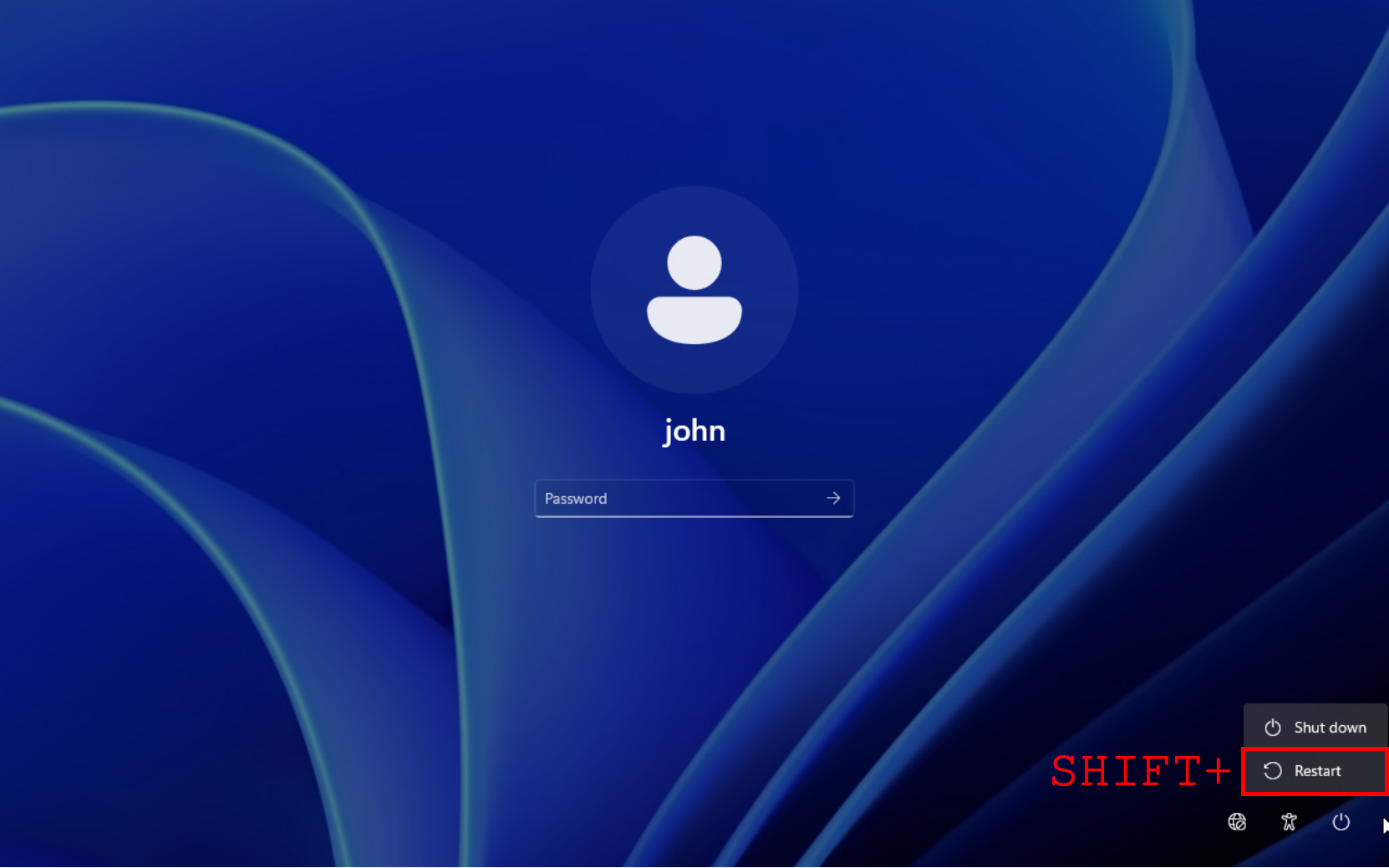
To recover access in this specific case, we first need to boot into the Windows recovery environment. This can be done directly from the login screen by holding down ⇧ Shift while selecting Restart.
- Hold down ⇧ Shift and select Restart:
- From the recovery environment, the system volume is readable from the Command Prompt. This confirms that, even though BitLocker is present, the filesystem is automatically unlocked in this specific boot context. From there, local recovery operations become possible, such as working with
Utilman.exe:
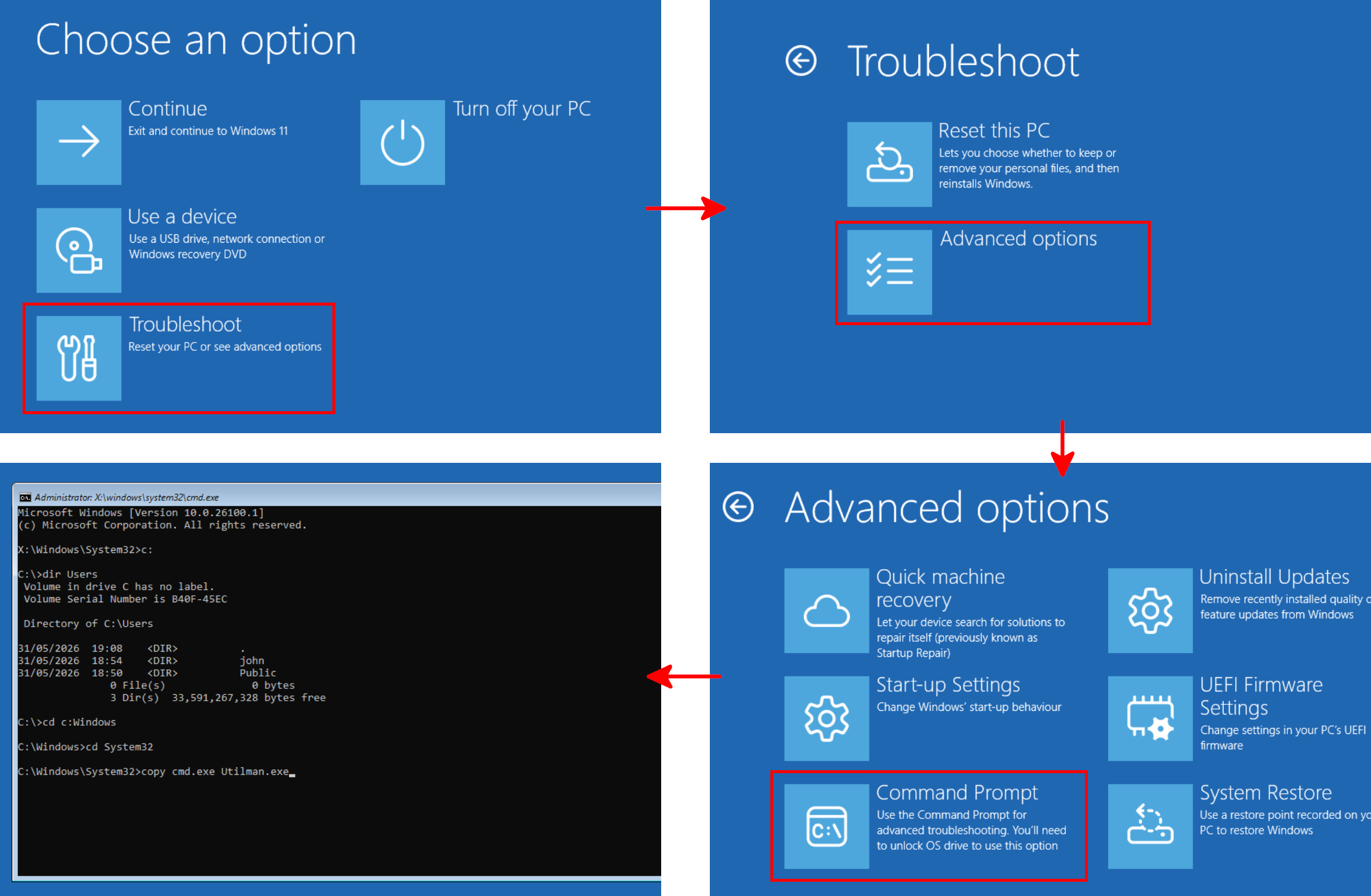
This case shows that BitLocker may be present and prevent direct access from a Linux LiveCD, while still being automatically unlocked from the original Windows recovery environment.