
Secure Open WebUI with HTTPS using Caddy on Debian
- Last updated: Oct 19, 2026

In a previous tutorial, I explained how to install Open WebUI on Debian. As a reminder, Open WebUI is a self-hosted web interface that allows users to interact with Large Language Models (LLMs) through their web browsers.
By default, the Open WebUI installation described in that tutorial uses an unencrypted HTTP connection. While this may be acceptable in a testing environment, it presents security risks in a production or enterprise environment. In particular, usernames, passwords, and conversations could be intercepted when transmitted over the network without encryption.
To secure access to Open WebUI with HTTPS, we will configure a reverse proxy using Caddy, a lightweight and powerful web server that supports automatic TLS certificate management. Caddy provides a simple way to enable encrypted connections, making it an excellent choice for securing Open WebUI without complex configuration.
Architecture
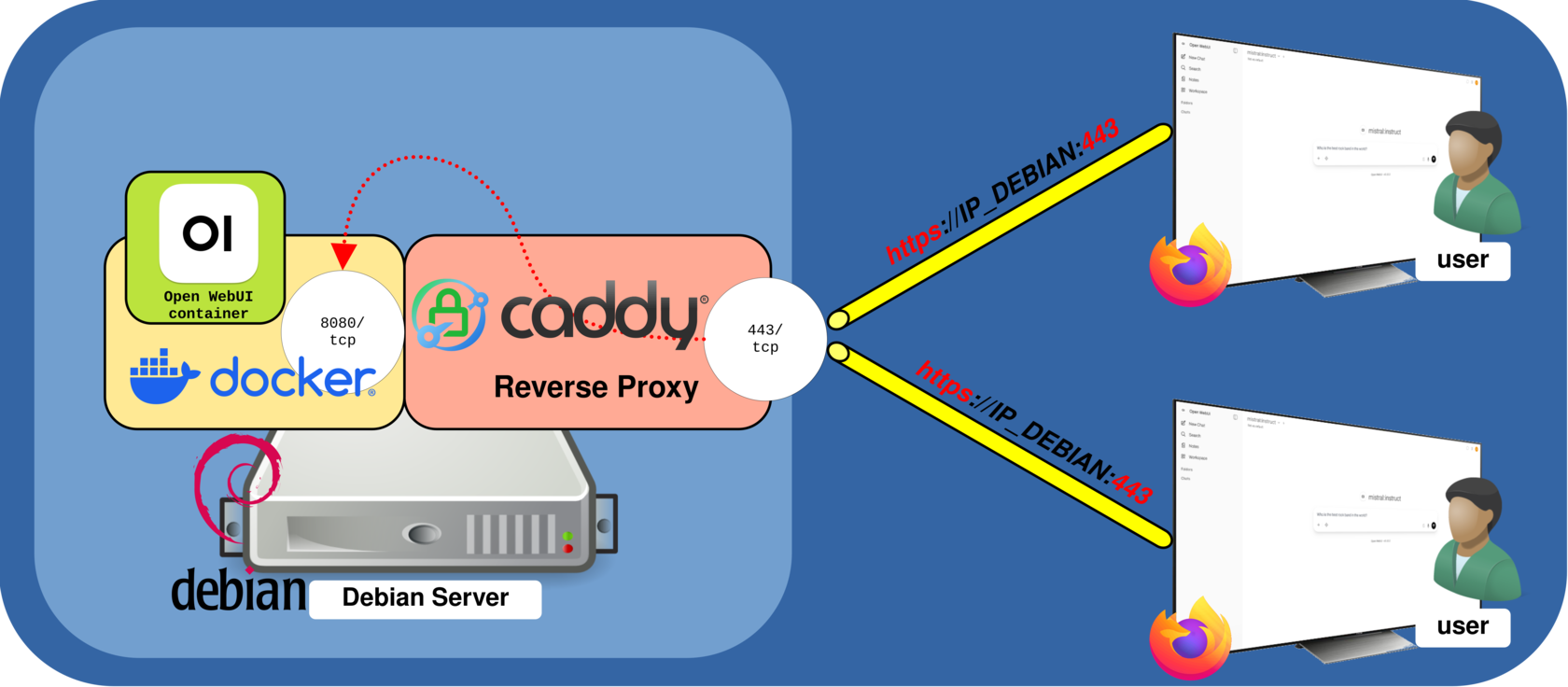
As illustrated in the diagram below, we will use Caddy as a reverse proxy to secure access to Open WebUI. Caddy handles incoming HTTPS connections on port 443/tcp, manages the TLS certificates, and forwards requests to the Open WebUI service listening on port 8080/tcp.
In this configuration, both Caddy and the Open WebUI Docker container run on the same Debian server. HTTPS encryption is handled by Caddy, while communication between the reverse proxy and Open WebUI takes place locally over HTTP.
Install Caddy
In this section, we will install and configure Caddy on our Debian server. Caddy will act as a reverse proxy, handling incoming HTTPS connections and forwarding requests to the Open WebUI service running locally on port 8080.
- Update the package index and install Caddy from the Debian repositories:
root@host:~# apt update && apt install caddy- Edit the
/etc/caddy/Caddyfileconfiguration file. ReplaceIP_DEBIANwith the actual IP address of your Debian server:
# Open WebUI HTTPS reverse proxy configuration

# IP address of the Debian server running Caddy and Open WebUI.
# Replace IP_DEBIAN with the actual server IP address.
IP_DEBIAN {
    # Generate and manage TLS certificates using Caddy's internal CA.
    # Client devices must trust the Caddy root CA certificate.
    tls internal

    # Forward incoming HTTPS requests to Open WebUI.
    # Open WebUI listens locally on port 8080 over HTTP.
    reverse_proxy 127.0.0.1:8080
}- Validate the Caddy configuration:
root@host:~# caddy validate --config /etc/caddy/Caddyfile- Enable and restart the Caddy service:
root@host:~# systemctl enable caddy
root@host:~# systemctl restart caddy
You can now securely access Open WebUI over HTTPS at https://IP_DEBIAN.
Prevent HTTP Access
Now that users can access Open WebUI over HTTPS, we should prevent them from bypassing Caddy by connecting directly to the unencrypted HTTP port 8080. To achieve this, we will configure Open WebUI to listen only on the local loopback interface (127.0.0.1).
- Stop and remove the existing Docker container without deleting its persistent volume:
root@host:~# docker rm -f open-webui- Recreate the Open WebUI container with the additional
HOST=127.0.0.1environment variable:
root@host:~# docker run -d \
  --network=host \
  -v open-webui:/app/backend/data \
  -e HOST=127.0.0.1 \
  -e OLLAMA_BASE_URL=http://127.0.0.1:11434 \
  --name open-webui \
  --restart always \
ghcr.io/open-webui/open-webui:main- Verify that Open WebUI is listening only on
127.0.0.1:8080:
root@host:~# ss -lntp | grep 8080
LISTEN 0 2048 127.0.0.1:8080 0.0.0.0:* users:(("python3",pid=11429,fd=27))Use Let's Encrypt Certificates
We now have an Open WebUI server secured with HTTPS using certificates automatically generated by Caddy. However, since these certificates are issued by Caddy's internal Certificate Authority (CA), users may encounter a browser security warning if the CA is not trusted by their devices.
In an enterprise environment, you may prefer to use certificates issued by a publicly trusted Certificate Authority, such as Let's Encrypt. This allows users to access Open WebUI over HTTPS without browser certificate warnings, provided they use the domain name covered by the certificate.
In this example, we will configure Caddy to use existing Let's Encrypt SSL/TLS certificates that have been obtained on another machine and manually copied to our Debian server. This method is particularly useful for servers without Internet access.
- Edit the
/etc/caddy/Caddyfileconfiguration file. Replaceopenwebui.std.rockswith the actual DNS name used to access your Open WebUI server:
# Open WebUI HTTPS reverse proxy configuration

# Domain name used to access the Open WebUI server.
openwebui.std.rocks {
    # Use an existing Let's Encrypt certificate and private key.
    # Certificates are manually copied to this offline server.
    tls /etc/caddy/certs/fullchain.pem /etc/caddy/certs/privkey.pem

    # Forward incoming HTTPS requests to Open WebUI.
    # Open WebUI listens locally on port 8080 over HTTP.
    reverse_proxy 127.0.0.1:8080
}- Create a directory to store the Let's Encrypt certificates
root@host:~# mkdir -p /etc/caddy/certs- Copy the certificate and private key files into it:
root@host:~# cp fullchain.pem privkey.pem /etc/caddy/certs/- And set the appropriate ownership and permissions:
root@host:~# chown root:caddy /etc/caddy/certs/*.pemroot@host:~# chmod 640 /etc/caddy/certs/*.pem- Validate the Caddy configuration and restart the service to apply the changes:
root@host:~# caddy validate --config /etc/caddy/Caddyfile
root@host:~# systemctl restart caddy
Conclusion
We now have a secure Open WebUI installation accessible over HTTPS, with Caddy acting as a reverse proxy to encrypt communications between users and the web interface.
Whether using certificates generated by Caddy's internal Certificate Authority or existing Let's Encrypt certificates, this configuration helps protect user credentials and conversations from interception over the network. It also provides a simple and effective way to secure access to Open WebUI in an enterprise environment.