How to Monitor Cisco Switch Syslog with Logstash, Elasticsearch and Kibana
- Last updated: Jul 26, 2026

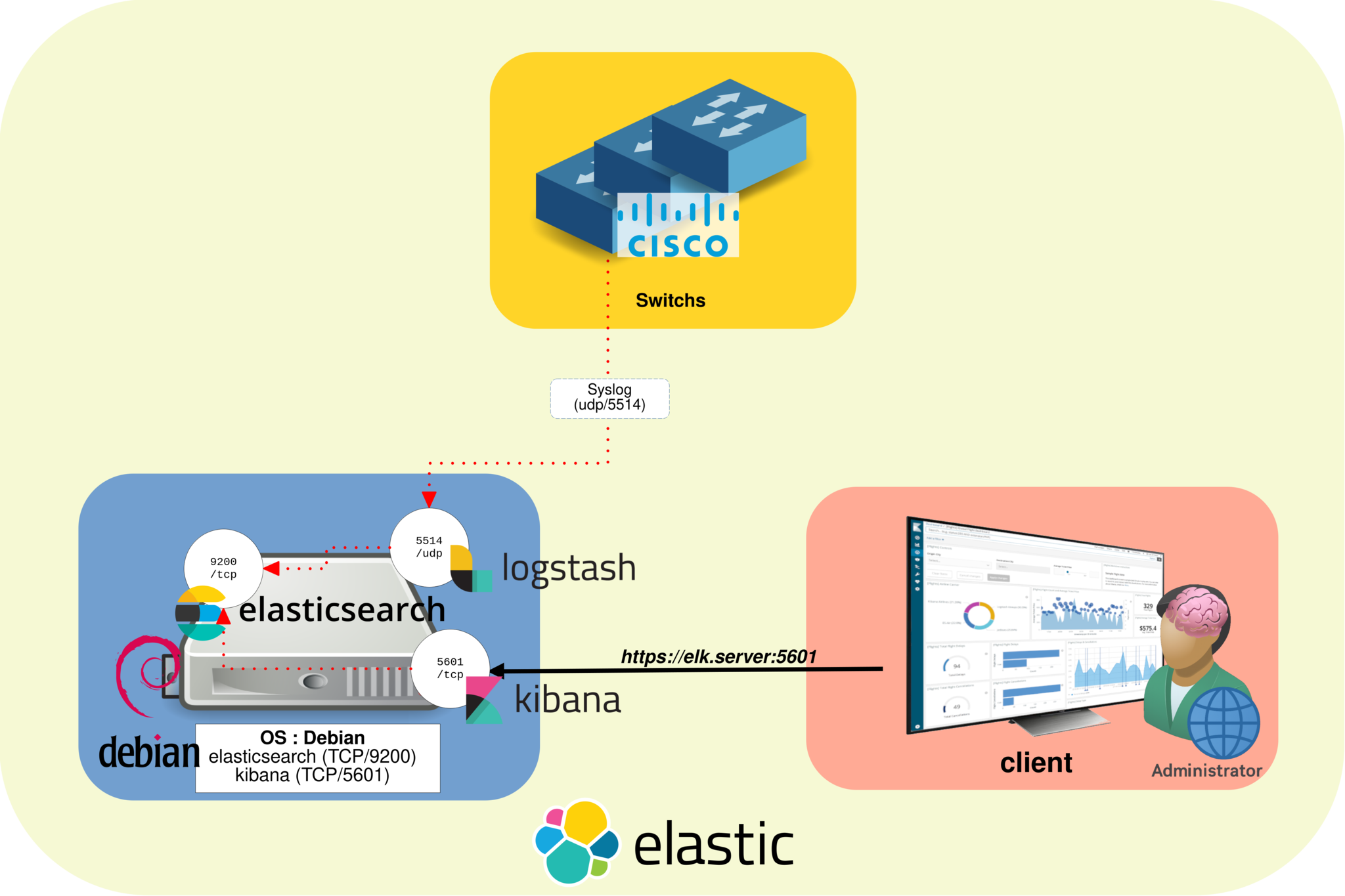
Now that our Elastic Stack is ready to go, we can start monitoring network devices. In this article, I will use Cisco Small Business/SG switches as an example.
The switches will use the syslog protocol to send log messages to Logstash.
Logstash will receive the messages, extract and parse the useful information, then forward the structured data to Elasticsearch.
This tutorial explains how to install and configure Logstash on Debian Linux to collect Cisco switch syslog logs, parse them with Grok filters, store them in Elasticsearch and visualize the data with Kibana dashboards.
Elastic Stack Architecture for Cisco Switch Monitoring
The following diagram shows the overall architecture used in this tutorial, including Cisco switches sending syslog logs to Logstash, Elasticsearch indexing and Kibana dashboard visualization.
How Logstash Processes Cisco Syslog Messages
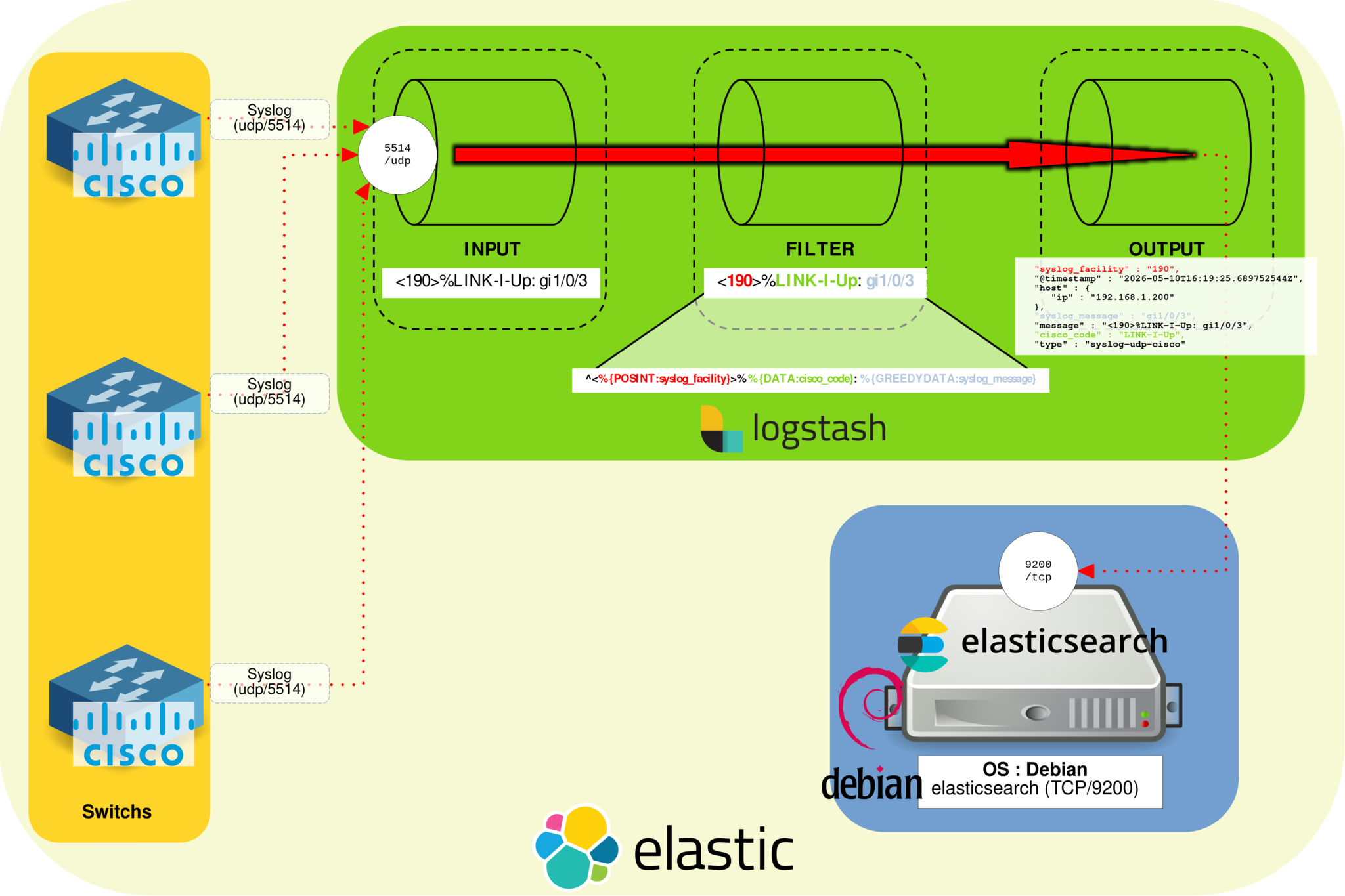
In this example, Cisco switches send syslog messages to Logstash, which parses and enriches the logs before forwarding them to Elasticsearch.
Installing Logstash on Debian
If you have not yet imported the Elasticsearch PGP key and added the repository definition, see part I.
- Install Logstash:
root@host:~# apt update && apt install logstashManage the Logstash service
- Check the Logstash service status:
root@host:~# systemctl status logstash.service- Enable Logstash at boot:
root@host:~# systemctl enable logstash.service- Start the Logstash service:
root@host:~# systemctl start logstash.serviceConfigure the Logstash Pipeline
Logstash pipeline files
Logstash pipeline configuration files define the input, filter and output stages used to collect, parse and forward Cisco syslog messages. On Debian, these files are stored in the /etc/logstash/conf.d directory.
Create the Cisco Logstash configuration file
- Create the
/etc/logstash/conf.d/cisco.conffile:
input {
	udp {
		port => "5514"
		type => "syslog-udp-cisco"
	}
}

filter {
	grok {
		#Remember, the syslog message looks like this : <190>%LINK-I-Up: gi1/0/13
		match => { "message" => "^<%{POSINT:syslog_facility}>%%{DATA:cisco_code}: %{GREEDYDATA:syslog_message}" }
	}
}
output {
	elasticsearch {
		hosts           => ["https://127.0.0.1:9200"]
                ssl_enabled     => true
                user            => "elastic"
                password        => "elastic_password;)"
                index           => "cisco-switches-%{+YYYY.MM.dd}"
                ssl_verification_mode => "none"

	}
}- Restart the Logstash service to apply the changes:
root@host:~# systemctl restart logstash.serviceCheck Logstash logs
- Display the Logstash log file:
root@host:~# tail /var/log/logstash/logstash-plain.logLogstash pipeline file explained
As shown above, the Logstash pipeline file is divided into three main sections: input, filter and output.
Input
The input section defines how Logstash receives Cisco syslog messages. In this example, Logstash listens for incoming UDP syslog traffic on port 5514.
- Use the UDP input plugin:
udp {- Specify the listening port:
port => "5514"- Add the
syslog-udp-ciscotype to identify Cisco syslog events in Elasticsearch and Kibana:
type => "syslog-udp-cisco"Filter
The filter section is where Logstash parses the raw Cisco syslog messages and extracts useful fields. The goal is to split each message into structured data that can be searched, filtered and visualized in Kibana.
For example, a Cisco syslog message such as <190>%LINK-I-Up: gi1/0/13 can be split into a syslog facility, a Cisco event code and the remaining message content.

- Commonly used Grok patterns include:
- WORD: matches a single word
- NUMBER: matches a positive or negative integer or floating-point number
- POSINT: matches a positive integer
- IP: matches an IPv4 or IPv6 address
- NOTSPACE: matches anything that is not a space
- SPACE: matches one or more consecutive spaces
- DATA: matches a limited amount of any kind of data
- GREEDYDATA: matches all remaining data
Output
Once the Cisco syslog data has been parsed and structured, the output section sends the events to the Elasticsearch server.
- Specify the Elasticsearch server address:
hosts => ["https://127.0.0.1:9200"]- Set the index name used to store Cisco switch logs:
index => "cisco-switches-%{+YYYY.MM.dd}"Configure Cisco Switches for Syslog
- Configure each Cisco switch to enable syslog logging and specify the IP address of the Logstash server:
Switch(config)# logging host 192.168.1.200 port 5514Test and Troubleshoot the Logstash Pipeline
Check the Logstash pipeline file
- Check the syntax of the Logstash pipeline configuration file:
root@host:~# /usr/share/logstash/bin/logstash -f /etc/logstash/conf.d/pipeline.conf --config.test_and_exitManually test the Logstash pipeline output
- Stop the Logstash service:
root@host:~# systemctl stop logstash.service- Add a listening port and a stdout output to your pipeline file to display events directly in the console:
input {
	tcp {
		port => "5514"
		type => "syslog-tcp-telnet"
	}
}

[…]
output {
	stdout { codec => rubydebug }
}- Run Logstash manually with the Cisco pipeline configuration file:
root@host:~# /usr/share/logstash/bin/logstash -f /etc/logstash/conf.d/cisco.conf --config.reload.automatic- Use telnet to connect to the Logstash listening port and send a test syslog message. This test only works with the TCP input plugin:
root@host:~# telnet 192.168.1.200 5514
<190>%LINK-I-Up: gi1/0/13
List Elasticsearch indices
Now that the Cisco switches are properly configured, we can check whether their syslog events are correctly indexed in Elasticsearch.
- List the Elasticsearch indices:
root@host:~# curl --cacert /etc/elasticsearch/certs/http_ca.crt -u elastic https://localhost:9200/_cat/indices?v
Enter host password for user 'elastic':
health status index                             uuid                   pri rep docs.count docs.deleted store.size pri.store.size
green  open   .apm-agent-configuration          rkV4oelEQzC7zJ19_NYbcw   1   0          0            0       208b           208b
green  open   .kibana_1                         rtWr4Pk-TKmYrQ_jQ7Oi4Q   1   0       1689           93      2.6mb          2.6mb
green  open   .apm-custom-link                  Yo72Y9STSAiuSUWT40AJnw   1   0          0            0       208b           208b
green  open   .kibana_task_manager_1            o_uGNd0mQSu6X5_th3P2ng   1   0          5        50053      4.5mb          4.5mb
green  open   .async-search                     3RGoSaTXRLizPMce1I169w   1   0          3            6       10kb           10kb
yellow open   cisco-switches-2026.05.10         gs_PaI2iT_CMQhABskEB6g   1   1      17109            0      1.5mb          1.5mb
green  open   .kibana-event-log-7.10.2-000002   r_1sdbv0QW2XNR0bcvZN2g   1   0          1            0      5.6kb          5.6kb
yellow open   cisco-switches-2026.05.06         j9yz1SWzRwaG_int0rX4YQ   1   1       2283            0    338.1kb        338.1kb
- Display the content of a Cisco switch index:
root@host:~# curl --cacert /etc/elasticsearch/certs/http_ca.crt -u elastic 'https://localhost:9200/cisco-switches-2026.05.06/_search?pretty'
Enter host password for user 'elastic':
[…]
{
"_index" : "cisco-switches-2026.05.06",
"_id" : "UXV3wngBMGalcfKW8ROi",
"_score" : 1.0,
"_source" : {
"@version" : "1",
"event" : {
"original" : "<190>%AAA-I-DISCONNECT: User CLI session for user cisco over ssh , source 192.168.1.95 destination
192.168.1.200 TERMINATED. The Telnet/SSH session may still be connected. "
},
"syslog_facility" : "190",
"@timestamp" : "2026-05-10T16:19:25.689752544Z",
"host" : {
"ip" : "192.168.1.200"
},
"syslog_message" : "User CLI session for user cisco over ssh , source 192.168.1.95 destination 192.168.1.200 TERM
INATED. The Telnet/SSH session may still be connected. ",
"message" : "<190>%AAA-I-DISCONNECT: User CLI session for user cisco over ssh , source 192.168.1.95 destination 1
92.168.1.200 TERMINATED. The Telnet/SSH session may still be connected. ",
"cisco_code" : "AAA-I-DISCONNECT",
"type" : "syslog-udp-cisco"
}
},
[…]Kibana Data Views and Dashboards
Check Elasticsearch indices in Kibana
Now that the Cisco syslog data is stored in Elasticsearch indices, we can create a Kibana dashboard to visualize the switch logs.
- Open Firefox and go to the Kibana web interface:
- Open the main Kibana menu and navigate to Management > Stack Management > Index Management:
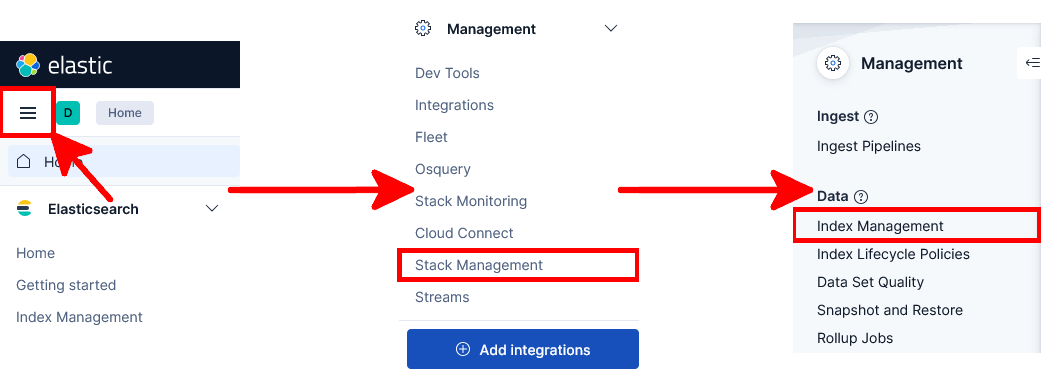
- You should now see the Cisco switch Elasticsearch indices created by Logstash:

Create a Kibana data view
We will now create a Kibana data view that matches the Cisco switch indices generated by Logstash.
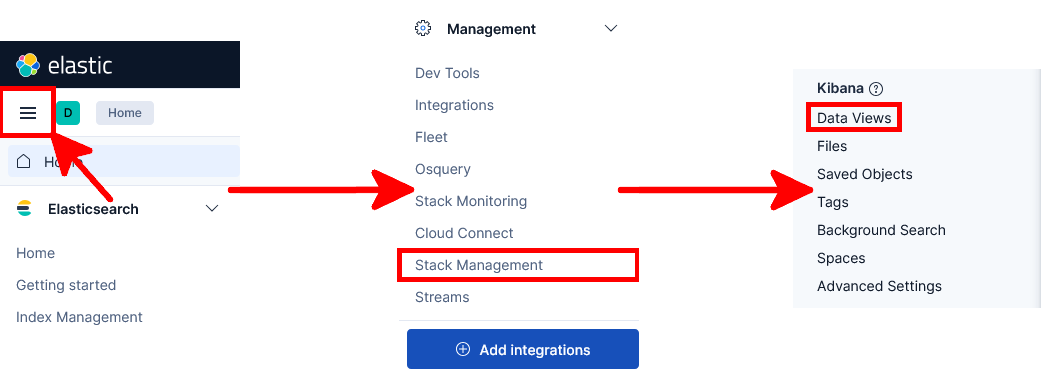
- Open the main Kibana menu and navigate to Management > Stack Management > Data Views:
- Click Create data view to create a new Kibana data view:

- Give the data view a name, enter
cisco-switches-*as the index pattern to match all Cisco switch indices, then click Save data view to Kibana:
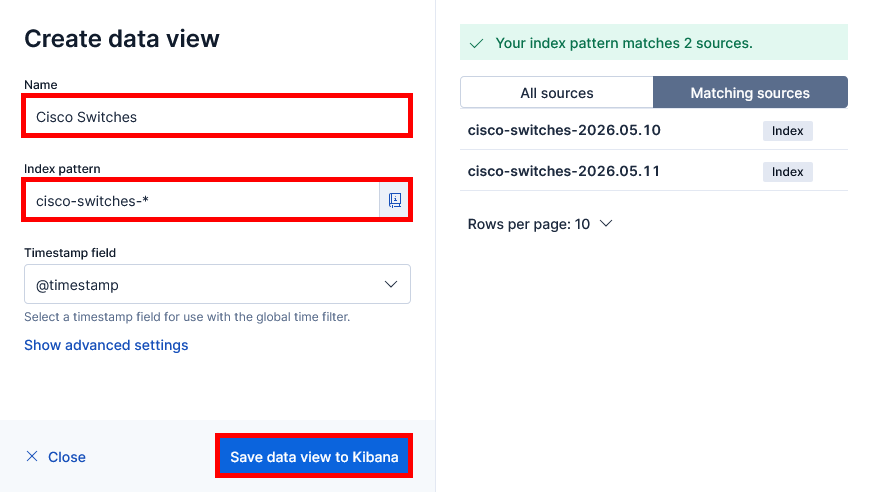
cisco-switches-* index pattern.
Create a Kibana dashboard
Now that Cisco switch logs are collected, parsed and indexed in Elasticsearch, we can create a Kibana dashboard to visualize the syslog events with charts and tables.
Pie chart
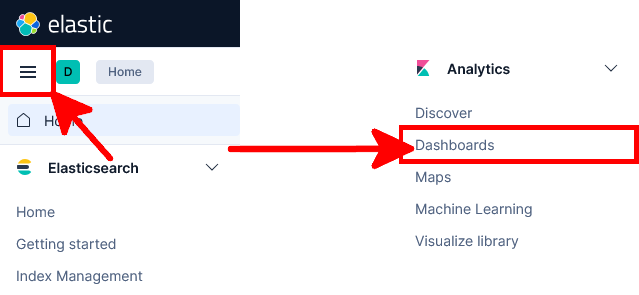
- Open the main Kibana menu and navigate to Analytics > Dashboards:
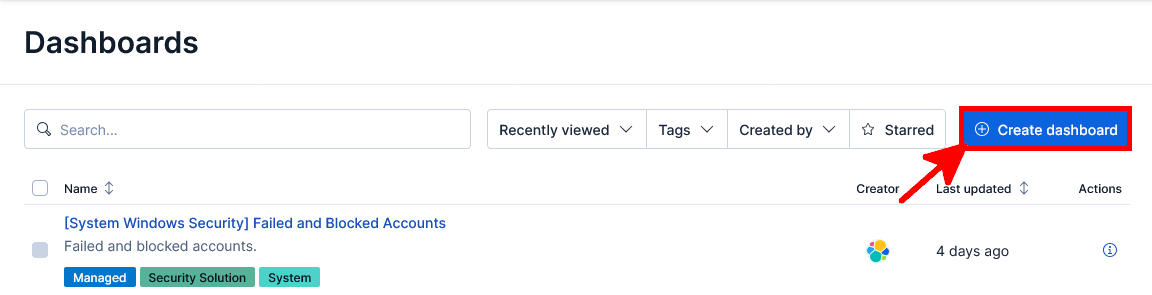
- Click Create dashboard to create a new Kibana dashboard:
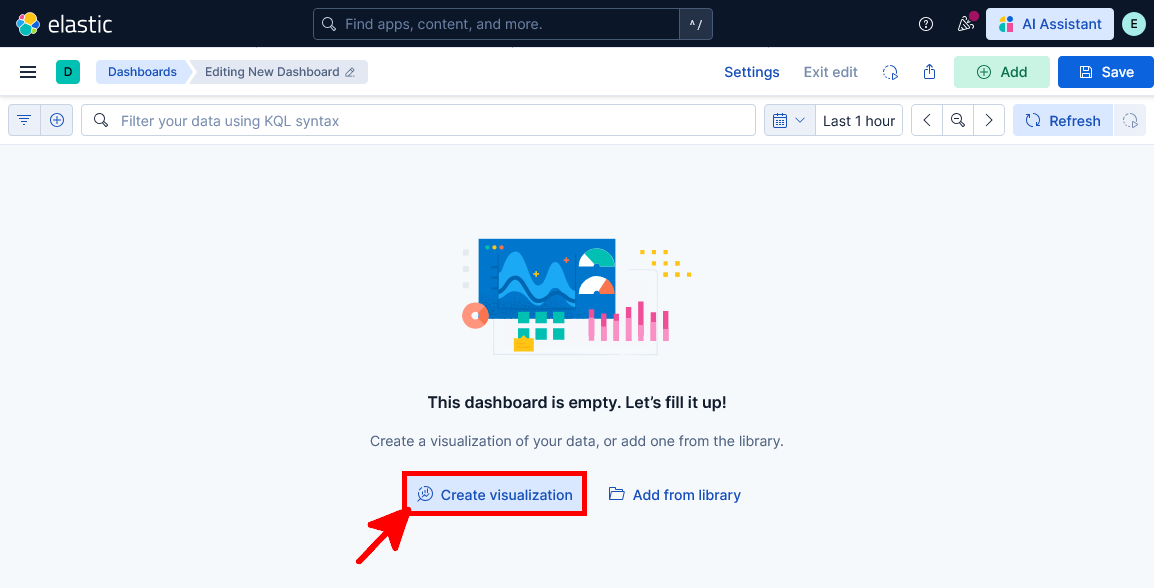
- Click Create visualization to add a new visualization to the Kibana dashboard:
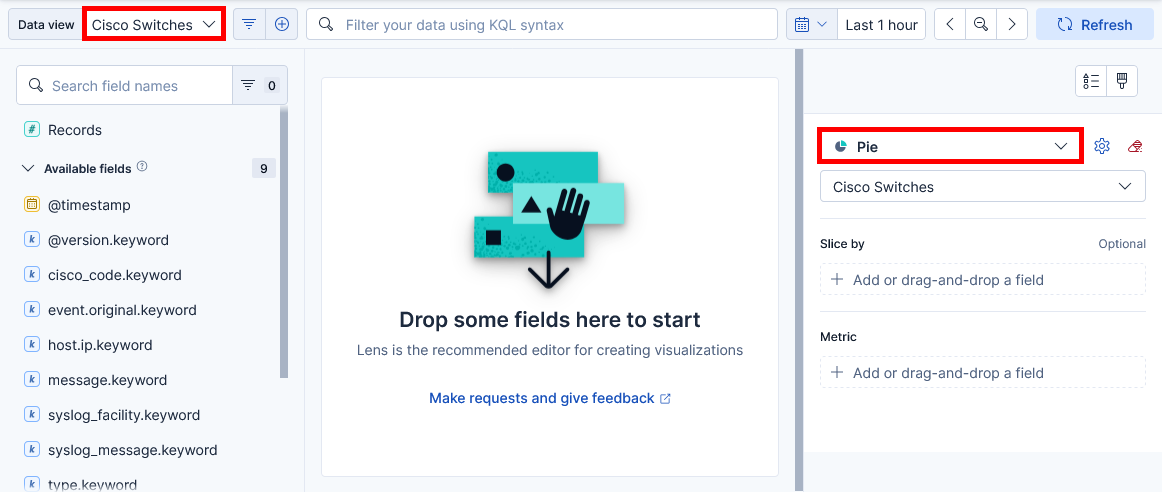
- Select the previously created Cisco Switches data view, then choose Pie as the visualization type:
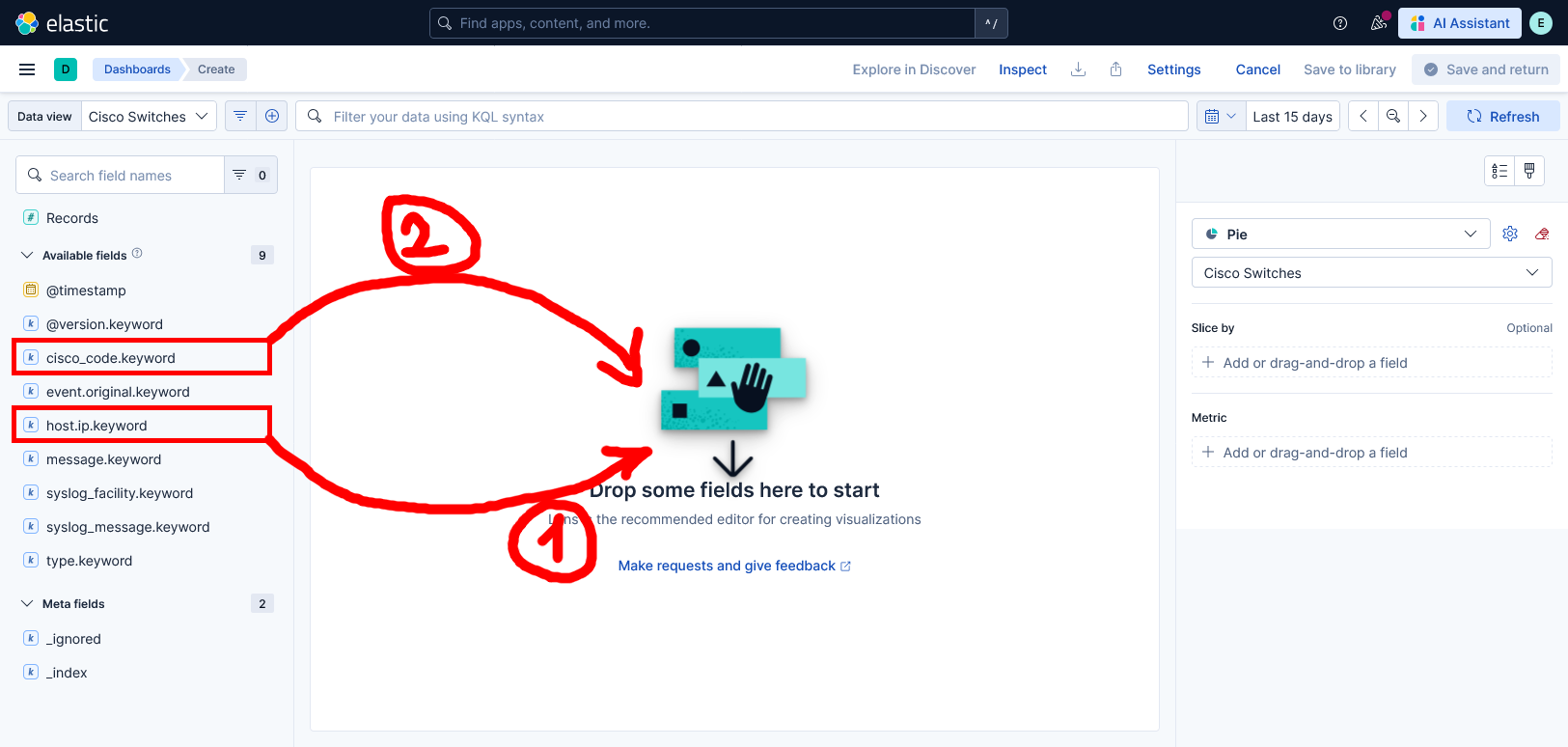
- Drag and drop the
host.ip.keywordandcisco_code.keywordfields into the visualization area:
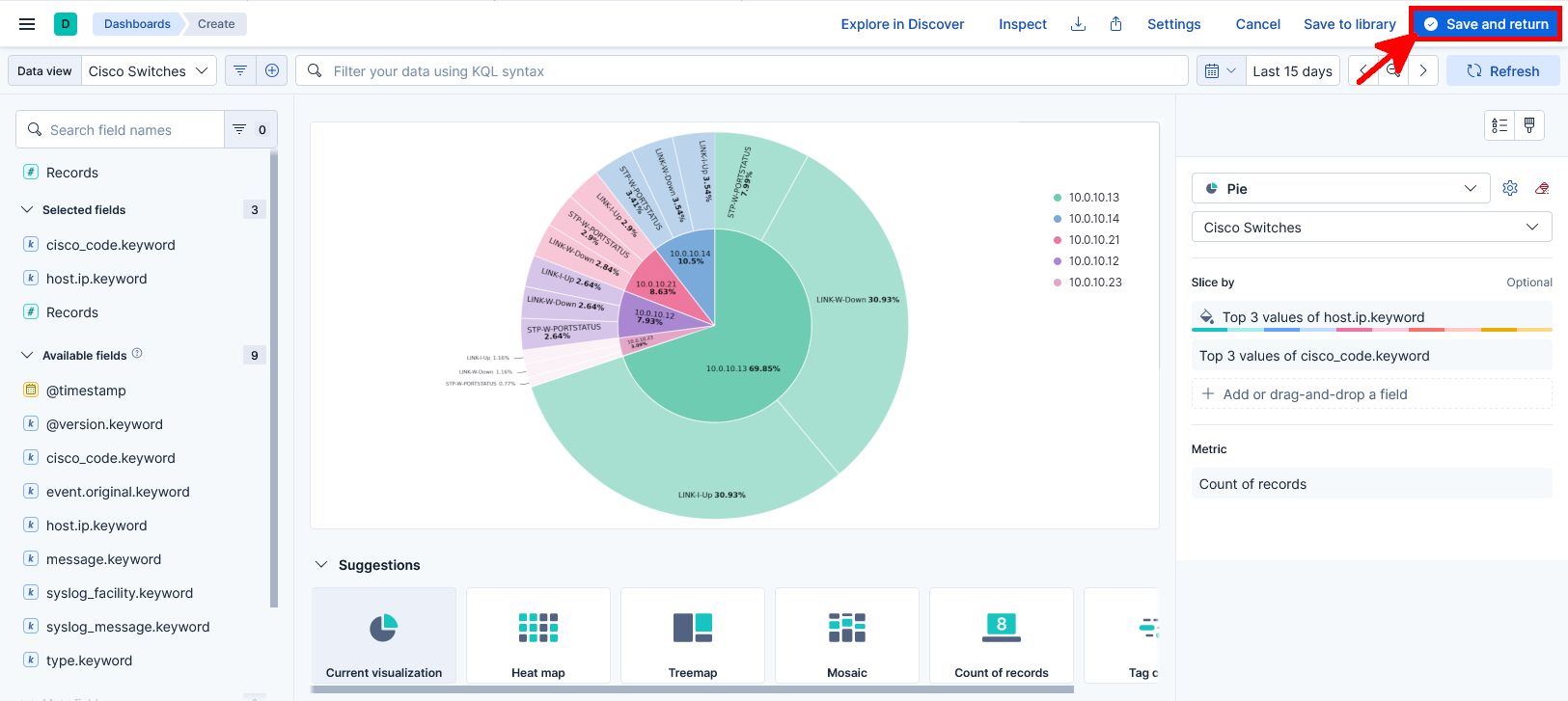
- You should now see the completed Pie chart visualization for Cisco switch syslog events. Click Save and return to add it to the dashboard:
Data table
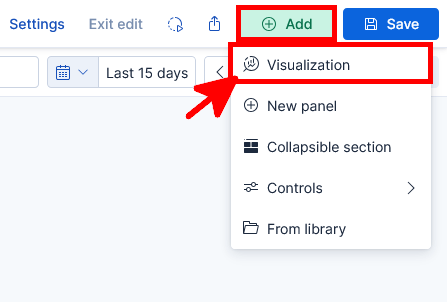
- From the Kibana dashboard, click Add, then select Visualization to create a new panel:
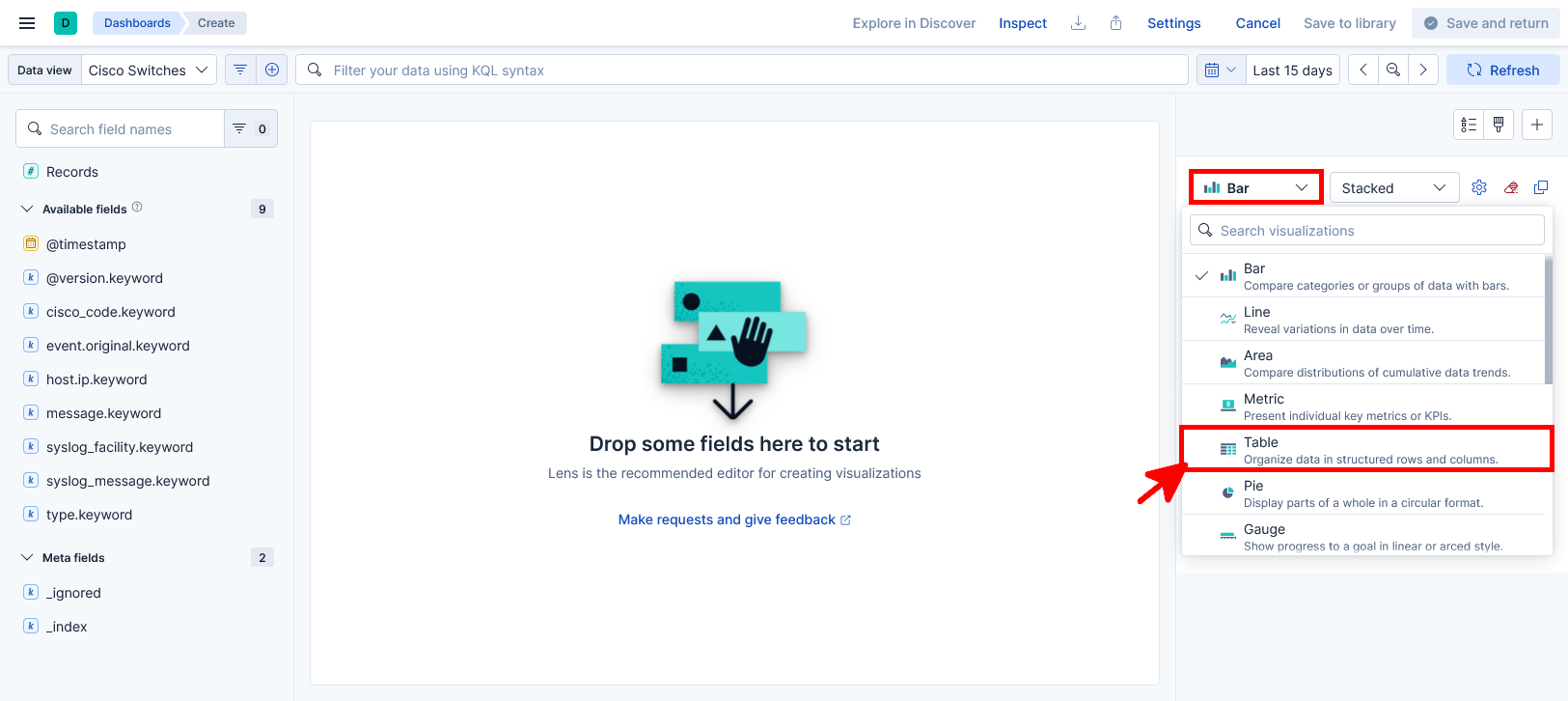
- Select Table as the visualization type:
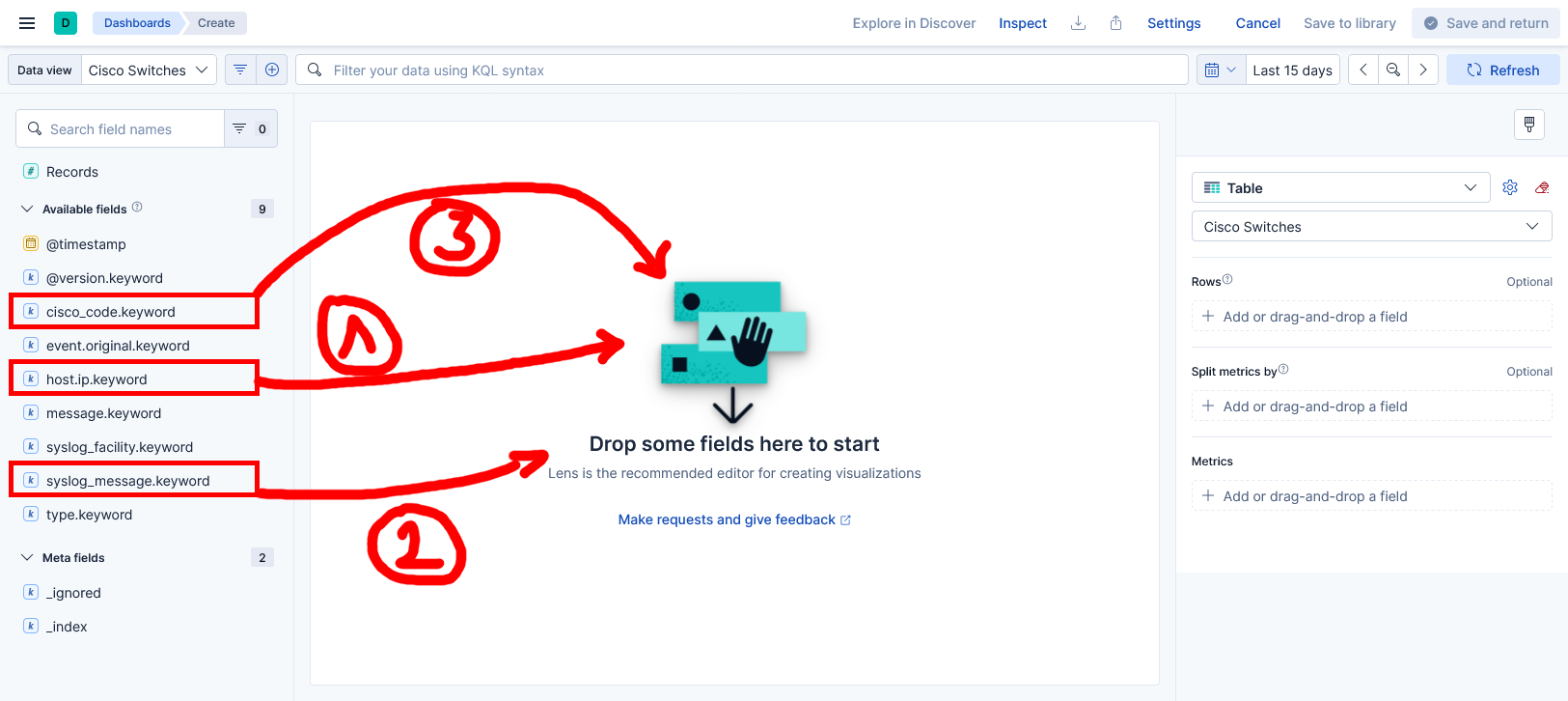
- Drag and drop the
host.ip.keyword,syslog_message.keywordandcisco_code.keywordfields into the table visualization:
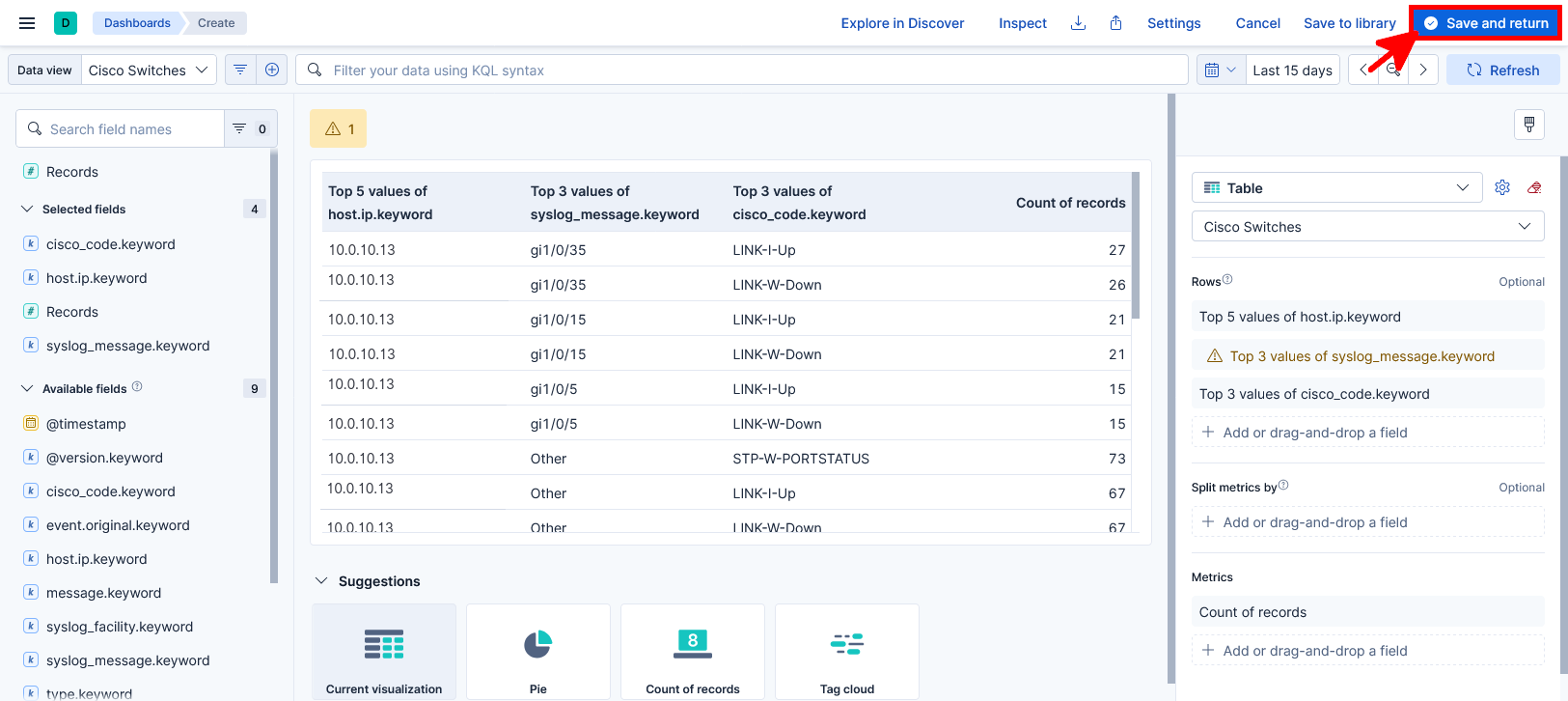
- You should now see the completed Data table visualization displaying Cisco switch syslog events. Click Save and return to add it to the dashboard:
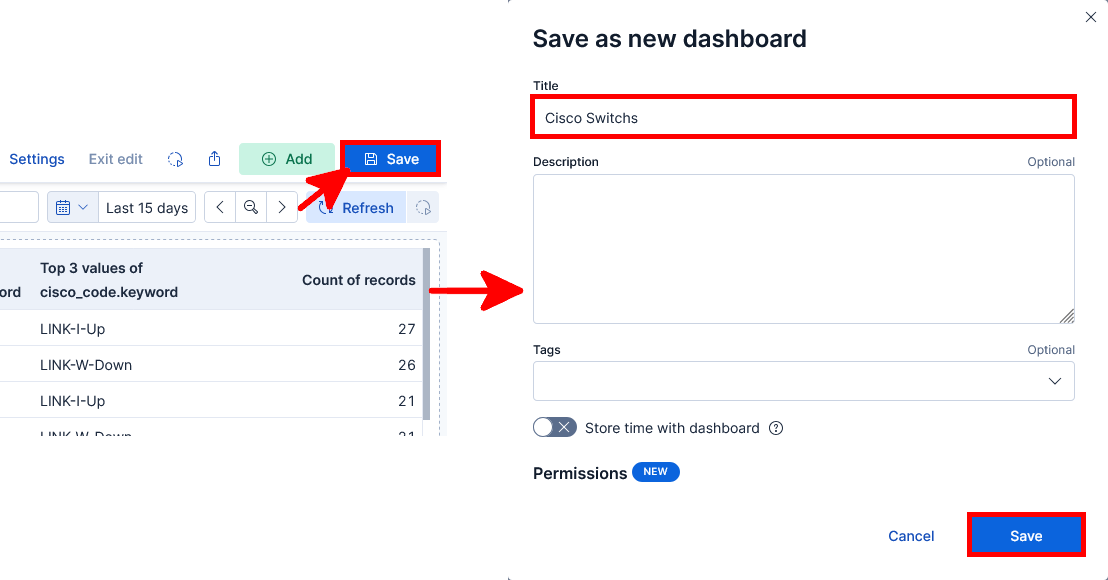
- Click Save to save the dashboard, then enter a name for the new Kibana dashboard: