
Install Microsoft Office with the Office Deployment Tool (ODT)
- Last updated: Sep 20, 2026

I remember a time when installing Microsoft Office was as simple as installing any other program: an ISO image, an .exe file, and that was it. As often with Microsoft, keeping things simple does not seem to be an option. By the way, I would recommend that you install and use LibreOffice, but that is another topic. Unfortunately, it is sometimes difficult to replace Microsoft Office in a business environment.
- Installing Microsoft Office now basically involves three steps:
- Download the
officedeploymenttool.exetool. - Generate an
XMLdeployment configuration file. - Run the
setup.exeprogram using theXMLfile as an argument.
- Download the
Easy, isn't it? In this tutorial, I will show you how to install Microsoft Office using the Office Deployment Tool (ODT), step by step.
Download the Office Deployment Tool
First, we need to download the Office Deployment Tool (ODT), a command-line tool provided by Microsoft that we will use to download and install Microsoft Office.
To do so, go to the Microsoft Support website and download the Office Deployment Tool.
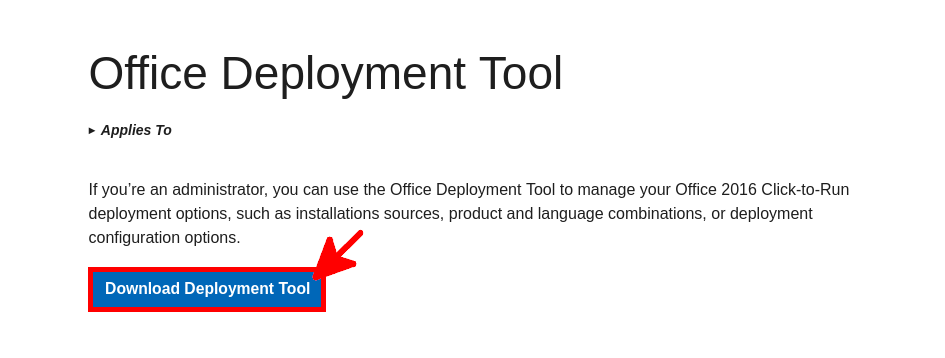
- Click the Download Deployment Tool link:
- Select the language and click the Download button to download the tool:

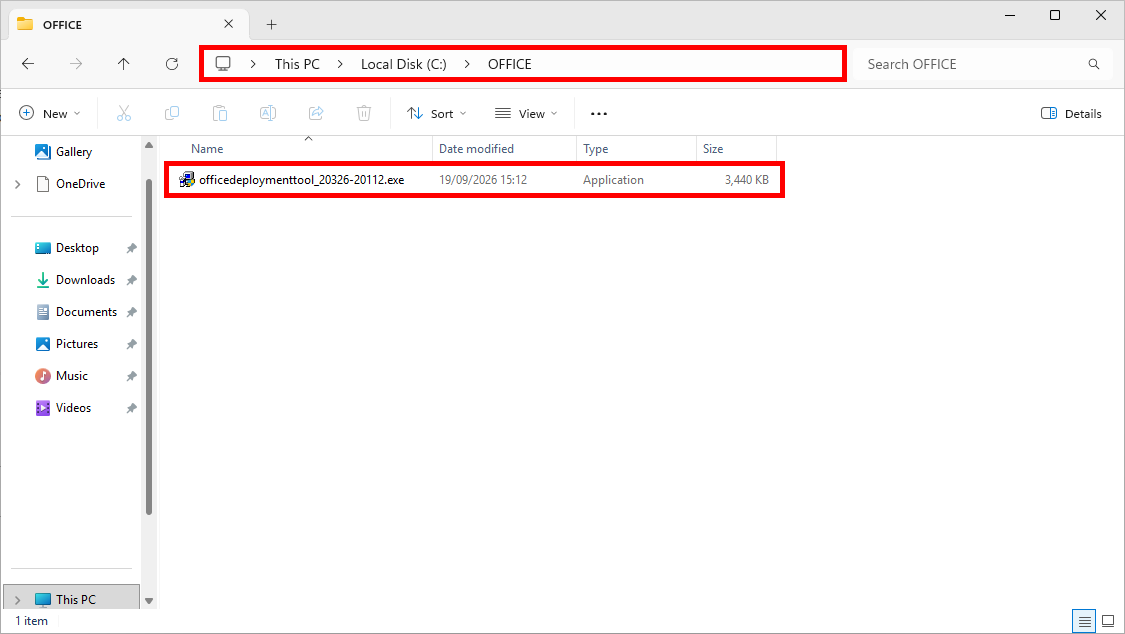
- Create the
C:\OFFICEfolder and place the downloadedofficedeploymenttool.exefile inside it. Double-click the file to run it:
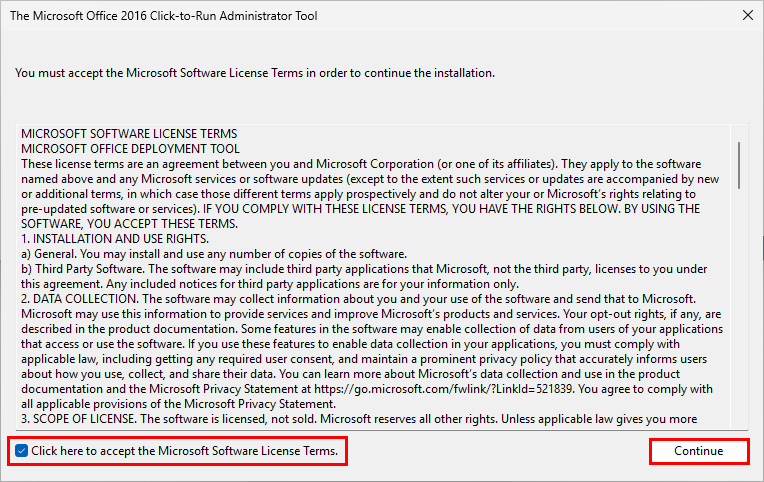
C:\OFFICE folder.- Accept the Microsoft Software License Terms and click Continue:
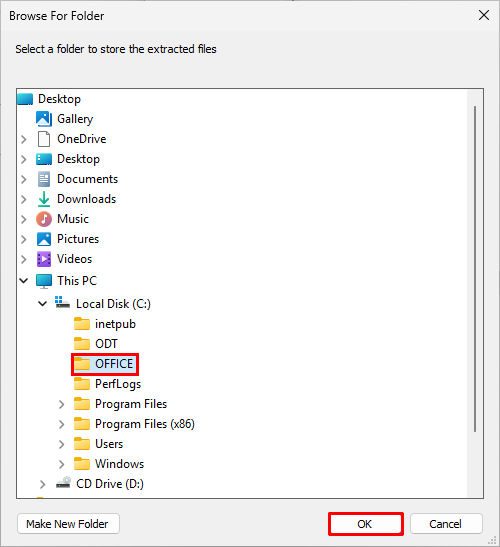
- Select the
C:\OFFICEfolder and click OK to extract the Office Deployment Tool files:
C:\OFFICE folder as the destination for the extracted Office Deployment Tool files.- You should now see the
setup.exefile and anXMLconfiguration file in theC:\OFFICEfolder:
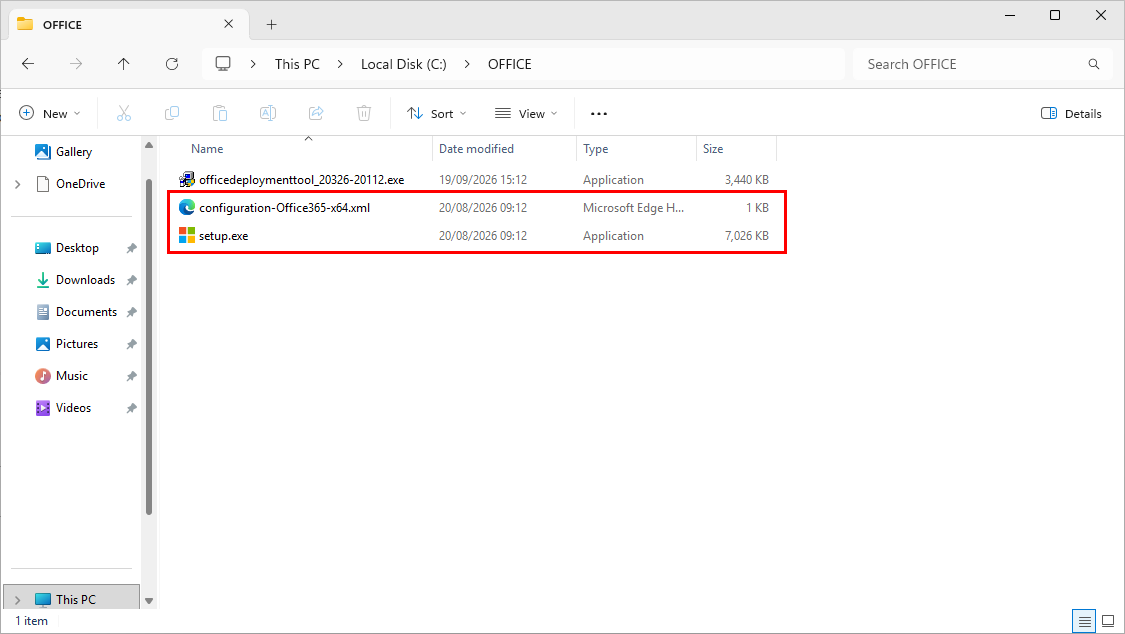
setup.exe and the XML configuration file.Create the XML Configuration File
Now that the setup.exe file has been extracted, we can create the XML configuration file that will define how Microsoft Office is installed. To do this, we can use Microsoft's online Office Customization Tool.
- Choose the required options, such as the architecture, the product, the apps to install, and the language:
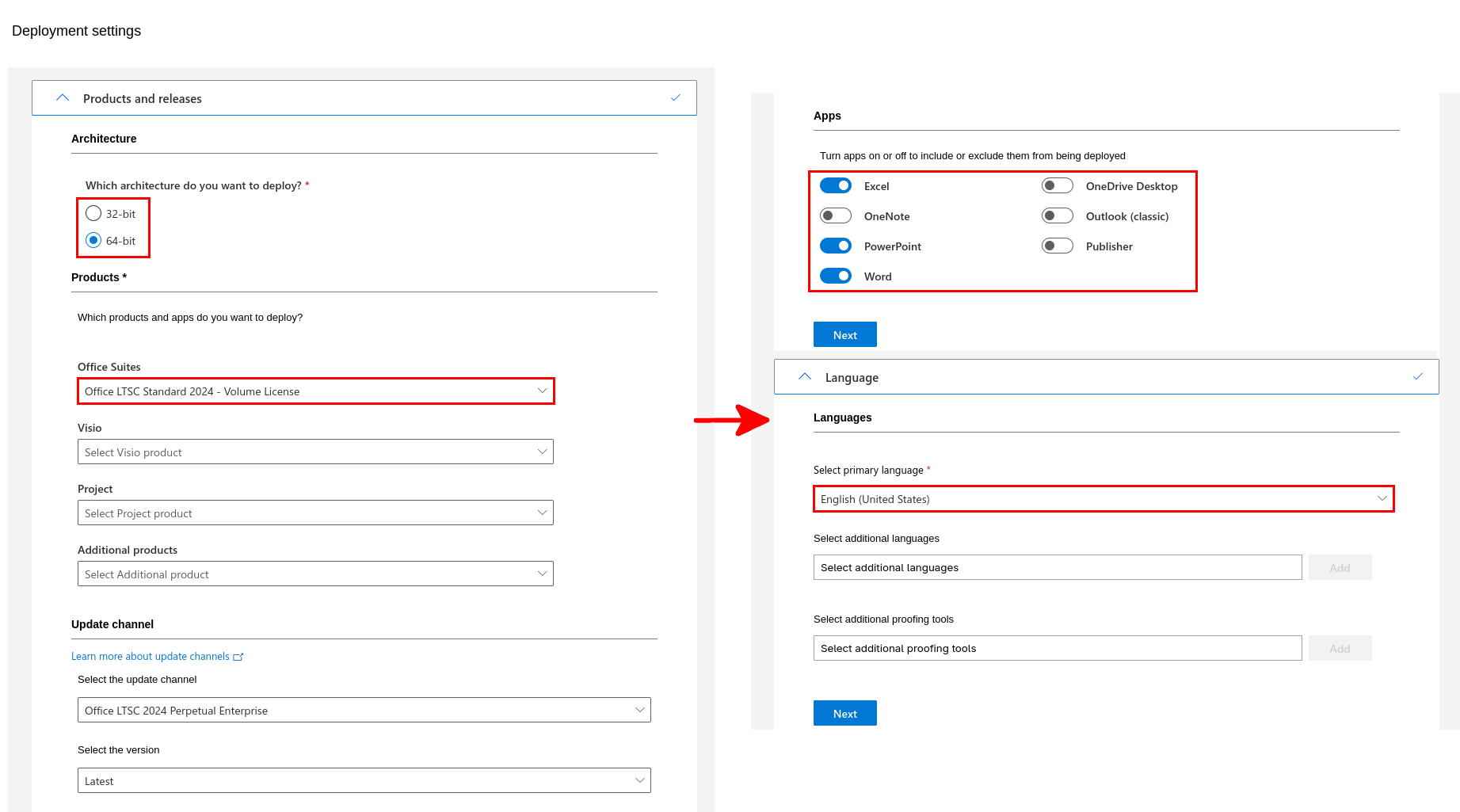
- Click the Export button, choose the default file format, accept the license agreement, enter a file name, and then click Export again to download the generated XML file:
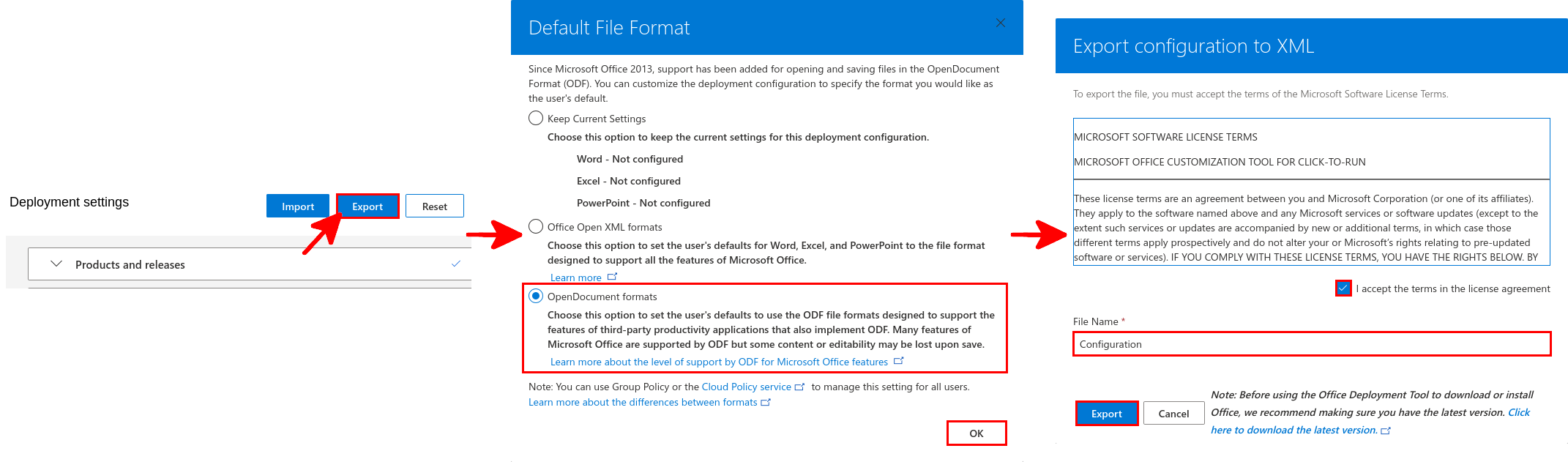
- Copy the generated
Configuration.xmlfile to theC:\OFFICEfolder:
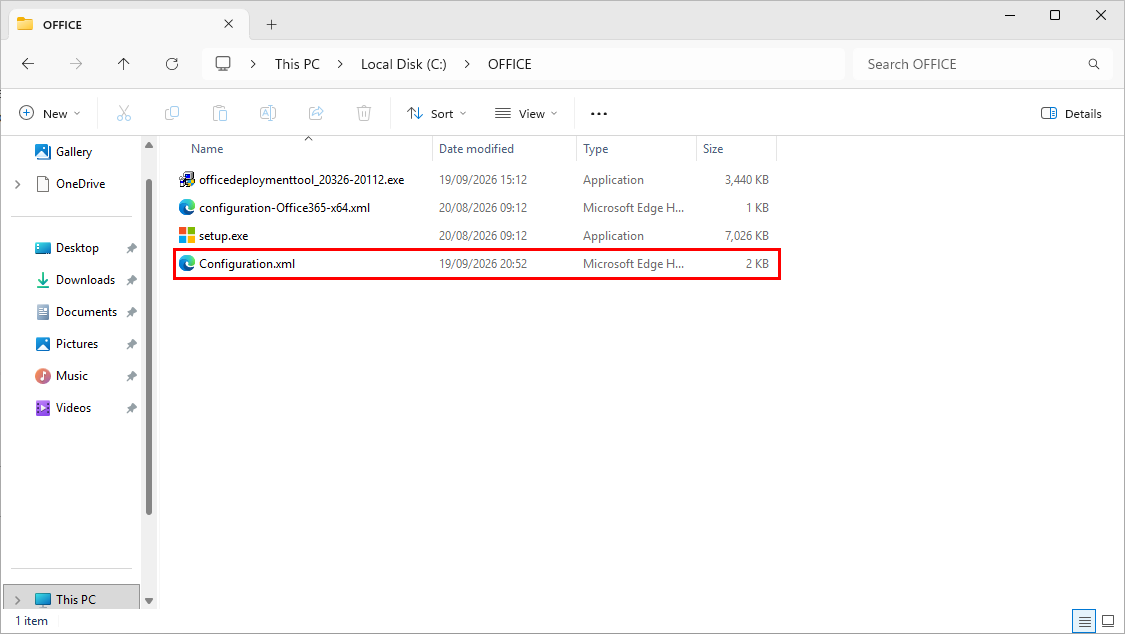
Configuration.xml file copied to the C:\OFFICE folder.Run the Installation
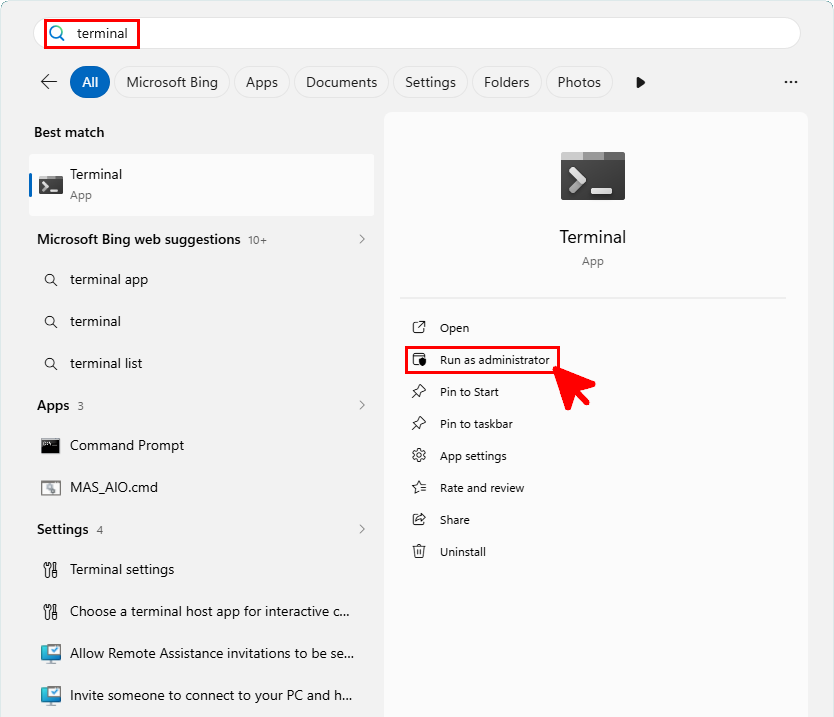
As a final step, run the setup.exe program from an administrator terminal using the XML configuration file.
- Open Terminal with administrator privileges:
- Change to the
C:\OFFICEdirectory:
C:\Windows\system32> cd C:\OFFICE- Run
setup.exewith theConfiguration.xmlfile:
c:\OFFICE> setup.exe /configure c:\OFFICE\Configuration.xml- The Microsoft Office installation should now start: