
How to Install and Use the Transmission BitTorrent Client
- Last updated: Aug 30, 2026

In this guide, I will introduce Transmission, my favorite BitTorrent client, and show you how to install and use it to download files with magnet links or .torrent files.
- Transmission is, in my opinion, one of the best BitTorrent clients because:
- It is free and open source. You can support the project through the official Transmission donation page.
- It has low CPU and RAM usage.
- It is easy to use and provides a simple, lightweight user interface with the essential options.
- It also provides command-line tools for users who prefer a CLI.
As a reminder, the BitTorrent protocol is a peer-to-peer (P2P) protocol used to distribute files over the Internet. Instead of relying on a single centralized server, data is exchanged between multiple peers, which helps distribute bandwidth and server load. This makes BitTorrent particularly useful for distributing large files. For example, many Linux distributions provide their installation ISO images through BitTorrent.
Install Transmission
The installation procedure differs depending on whether you are using Linux or Windows.
Linux (Debian/Ubuntu/Arch)
Transmission is available in the default repositories of Debian, Ubuntu, and Arch Linux, so it can be installed directly with the package manager.
- On Debian or Ubuntu, install the
transmission-gtkpackage:
root@debian:~# apt update && apt install transmission-gtk- On Arch Linux, install the
transmission-gtkpackage:
[root@arch ~]# pacman -S transmission-gtkWindows
First, go to the official Transmission download page.
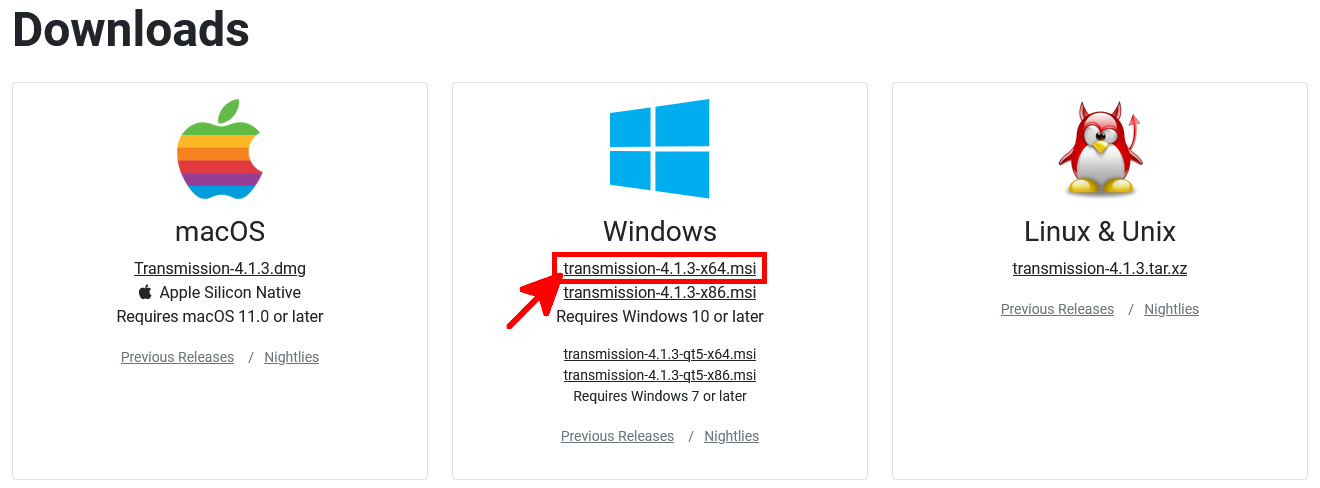
- Select the Transmission MSI installer for your system. In this example, we use the x64 package:
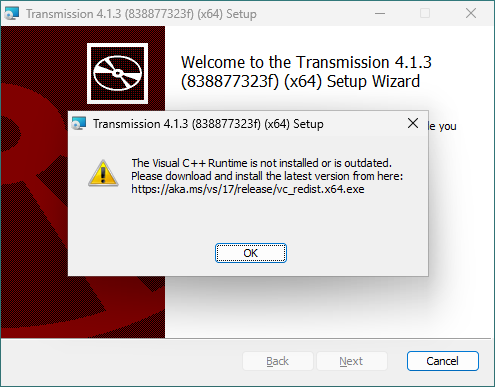
- Before installing Transmission, make sure that the Microsoft Visual C++ Runtime is installed and up to date. Otherwise, the installer will display the following warning and prevent you from continuing:
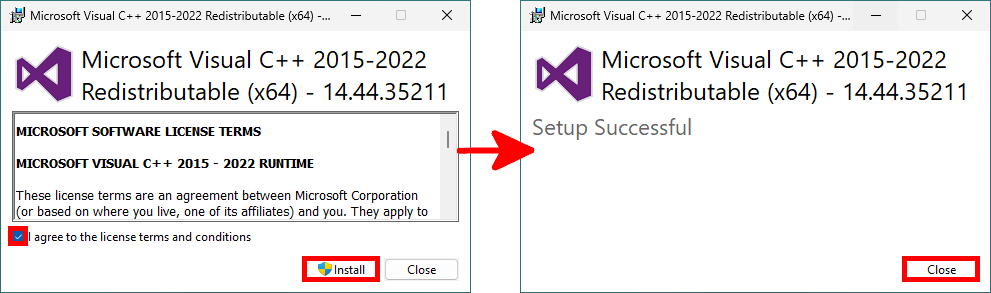
- Download the Microsoft Visual C++ Redistributable, accept the license terms, and install it:
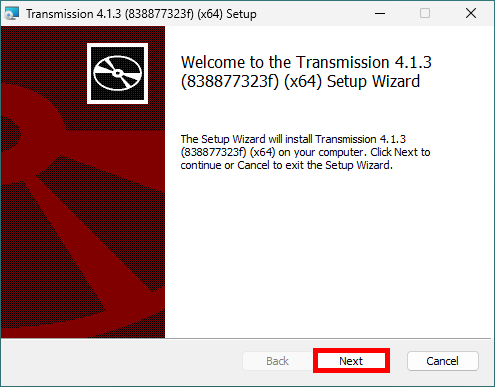
- Run the Transmission installer again, then click Next to continue:
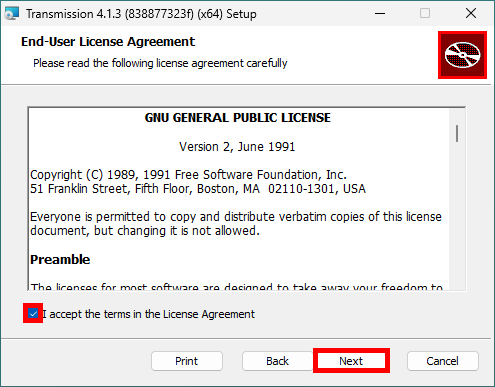
- Check the box to accept the license agreement, then click Next:
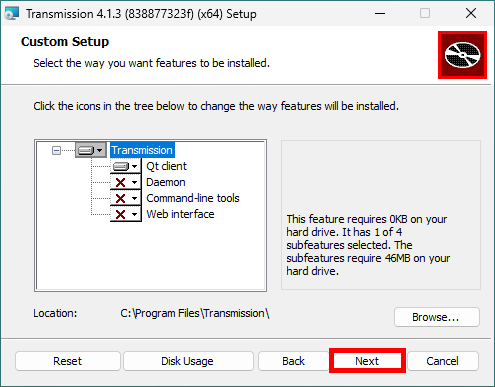
- If you do not plan to use the CLI, daemon, or web interface, you can keep the default selection and install only the Transmission Qt client. Then click Next:
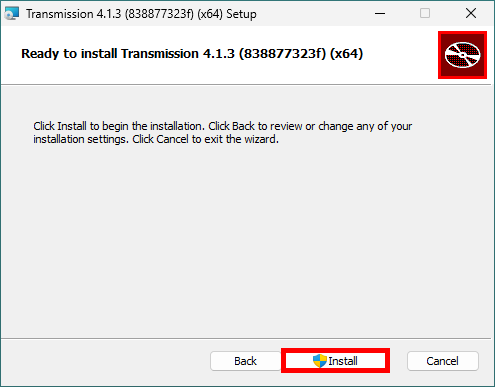
- Click Install to start installing Transmission on Windows:
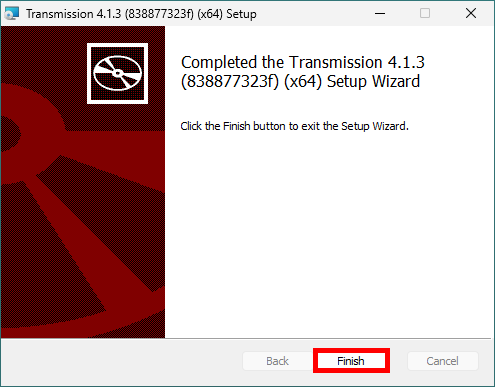
- Once the installation is complete, click Finish to close the setup wizard:
Using the Transmission BitTorrent Client
Now that the Transmission BitTorrent client is installed, you are ready to use it to download files.
There are two common ways to start a download with Transmission: by using a magnet link or a .torrent file. Although they work differently, both methods ultimately allow you to download the same content. Magnet links are now widely used because they are easy to share and do not require downloading a separate .torrent file, but both methods remain fully supported.
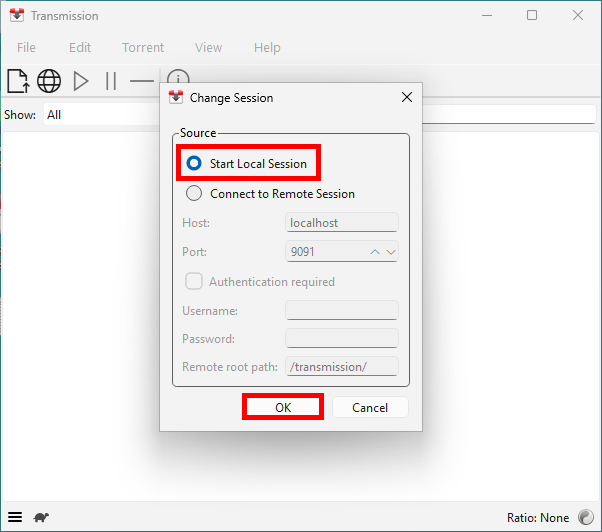
- Launch Transmission. On first startup, you may see the following window. Select Start Local Session, then click OK:
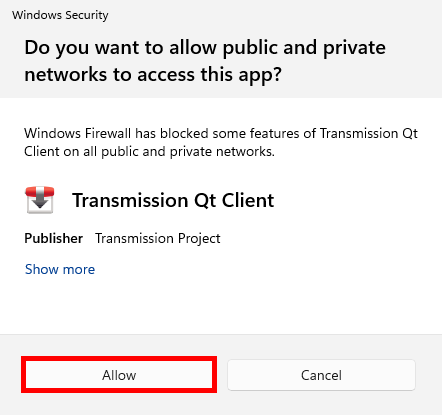
- On Windows, you may also see a Windows Security prompt asking whether you want to allow Transmission Qt Client through the firewall. Click Allow:
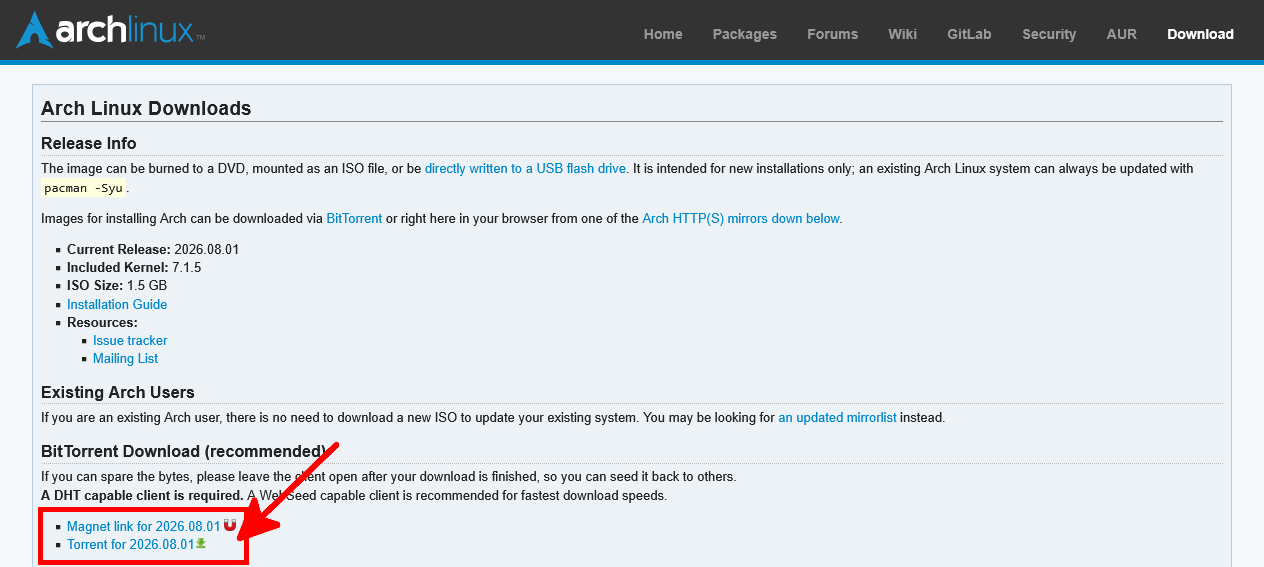
- For this example, we will use the Arch Linux ISO available from the official Arch Linux download page, which provides both a magnet link and a
.torrentfile:
Magnet Link
Let's start with magnet links. They are easy to share and do not require downloading a separate .torrent file. They can also be more resilient because they do not necessarily rely on a single centralized tracker.
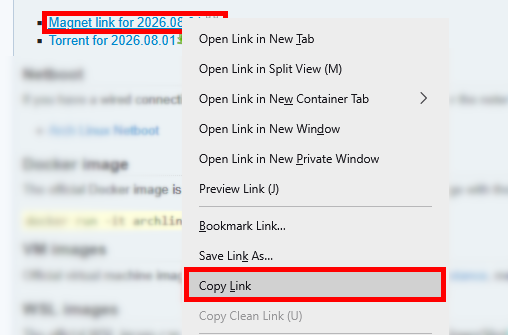
- Right-click the magnet link, then select Copy Link:
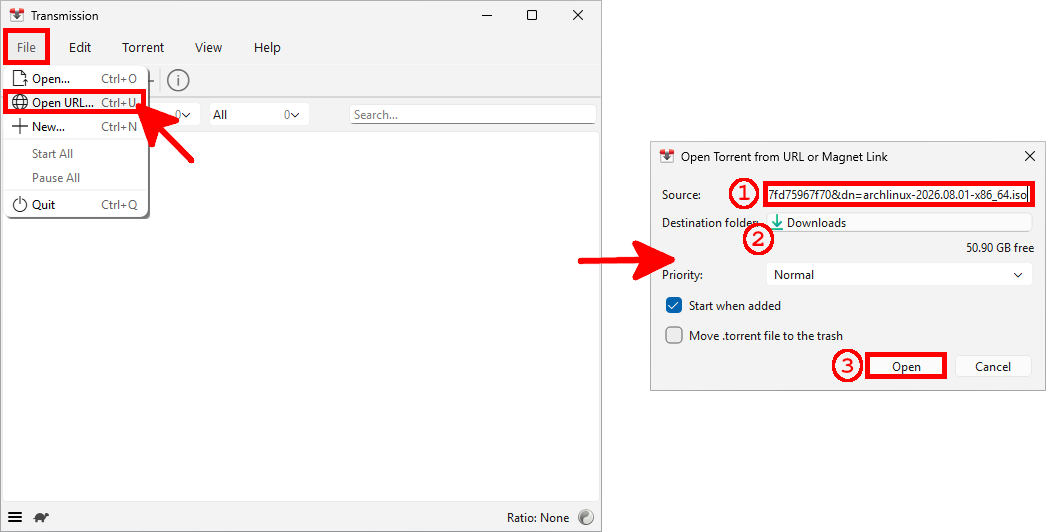
- In Transmission, go to File > Open URL…. Paste the magnet link (1), optionally change the destination folder (2), then click Open (3) to start the download:
.torrent File
A .torrent file contains metadata about the content to download, including file names, file sizes, piece information, and, when applicable, tracker addresses.
- Right-click the torrent link, then select Save Link As…. Choose a destination folder and save the
.torrentfile:
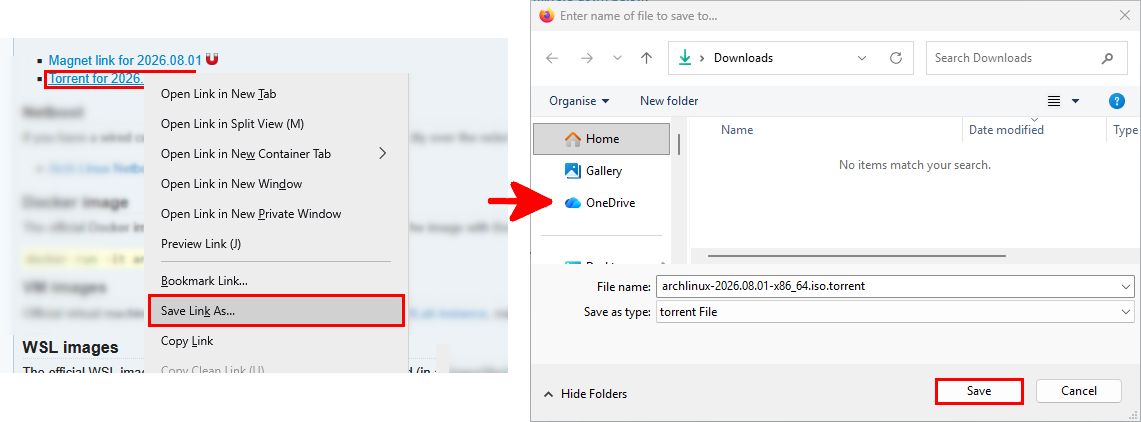
.torrent file before opening it with Transmission.- In Transmission, go to File > Open…. Select the previously downloaded
.torrentfile (1), then click Open (2). Transmission will display the files referenced by the torrent. You can optionally change the Destination folder (3), then click Open (4) to start the download:
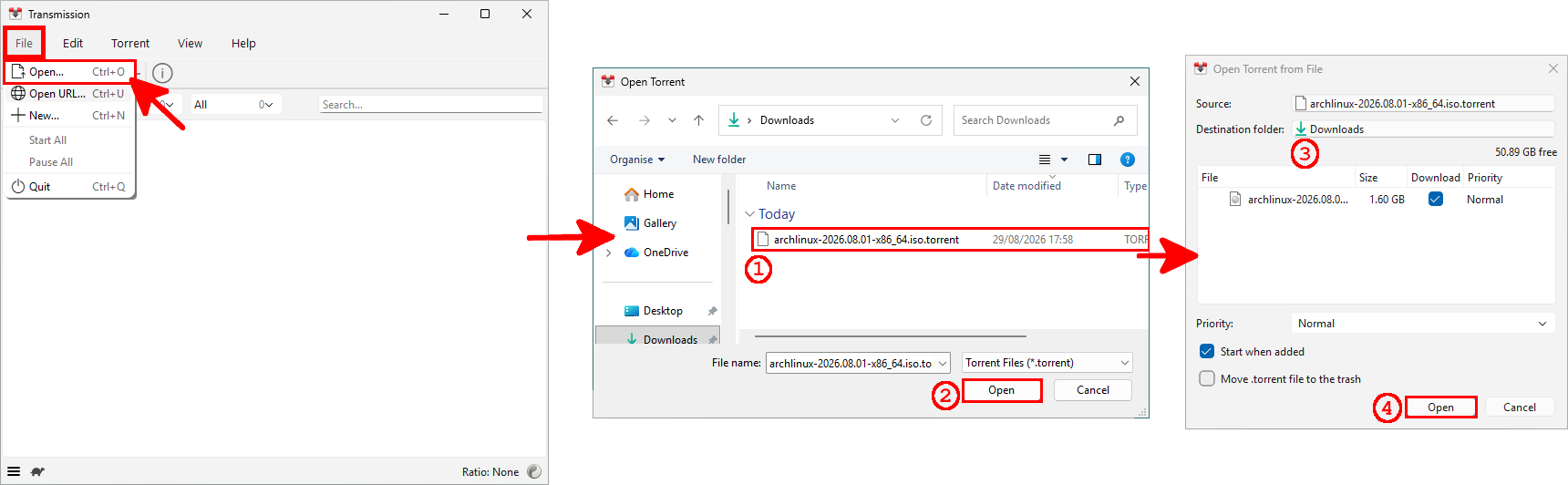
.torrent file in Transmission and choosing the download destination.What About BitTorrent Anonymity?
Now that we know how to download files with BitTorrent, what about anonymity? Does BitTorrent make you anonymous? Can other users see what you are downloading or sharing? In short, BitTorrent is not anonymous. Because files are exchanged directly between peers, the public IP addresses of the peers participating in a torrent swarm can generally be seen by other participants.
View Torrent Peers
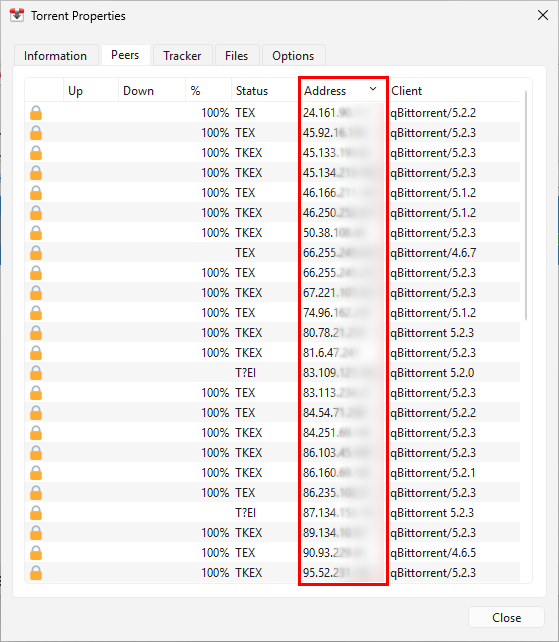
It is quite easy to view the IP addresses of the peers connected to a specific torrent.
- To view the connected peers, right-click the torrent in Transmission, then select Properties:
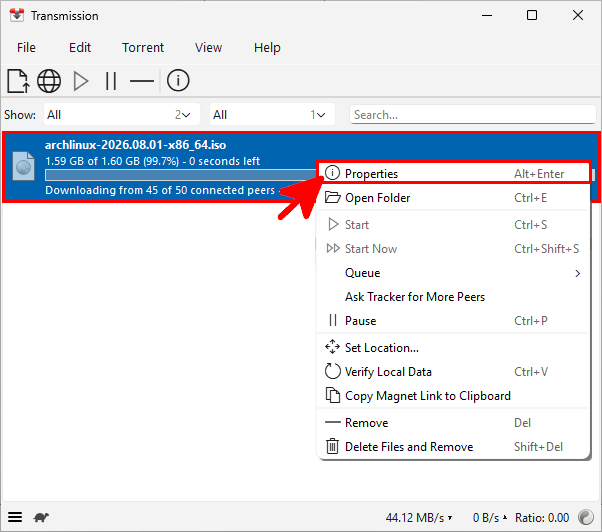
- In the Peers tab, you can see the IP addresses of the peers currently connected to the torrent, along with information such as the client software they are using:
However, the privacy implications go even further, as we will see below…
I Know What You Download
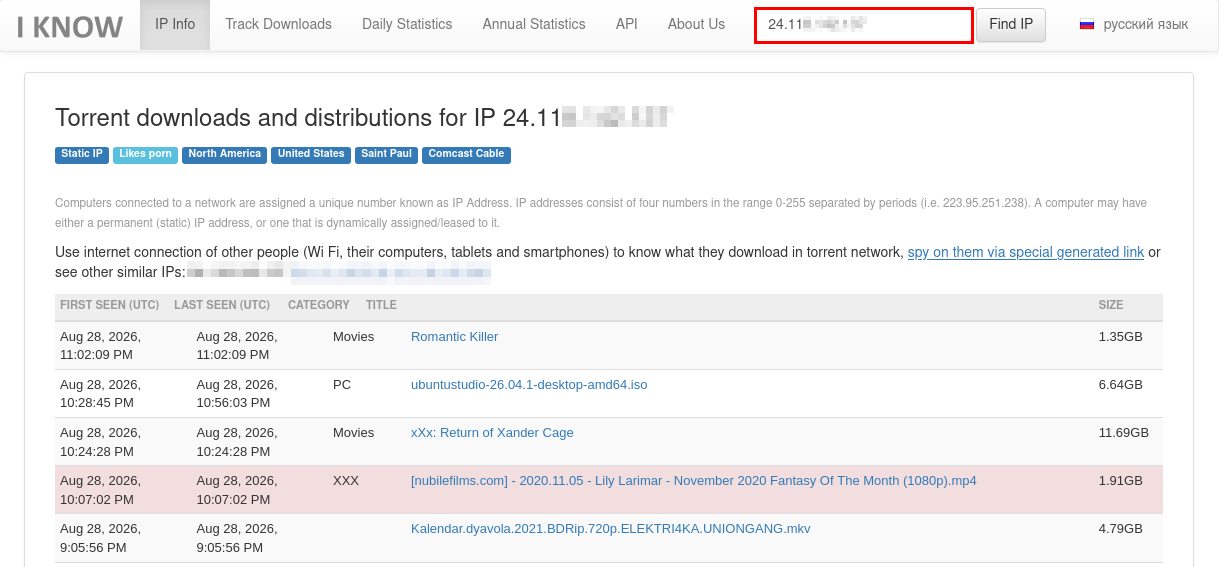
As we have seen, it is relatively easy to obtain the IP addresses of peers participating in a specific torrent. But can we learn more from an IP address? Unfortunately, yes. Services such as I Know What You Download can associate a public IP address with some BitTorrent activity observed on the network.
- It is quite simple: just enter the public IP address of a peer into the service. As this example shows, an IP address may be associated with much more than Linux ISO downloads (apparently, this peer isn't just interested in Linux distributions. 😅). This illustrates how BitTorrent activity can sometimes be linked to a public IP address and why BitTorrent should not be considered anonymous.
Blocklist
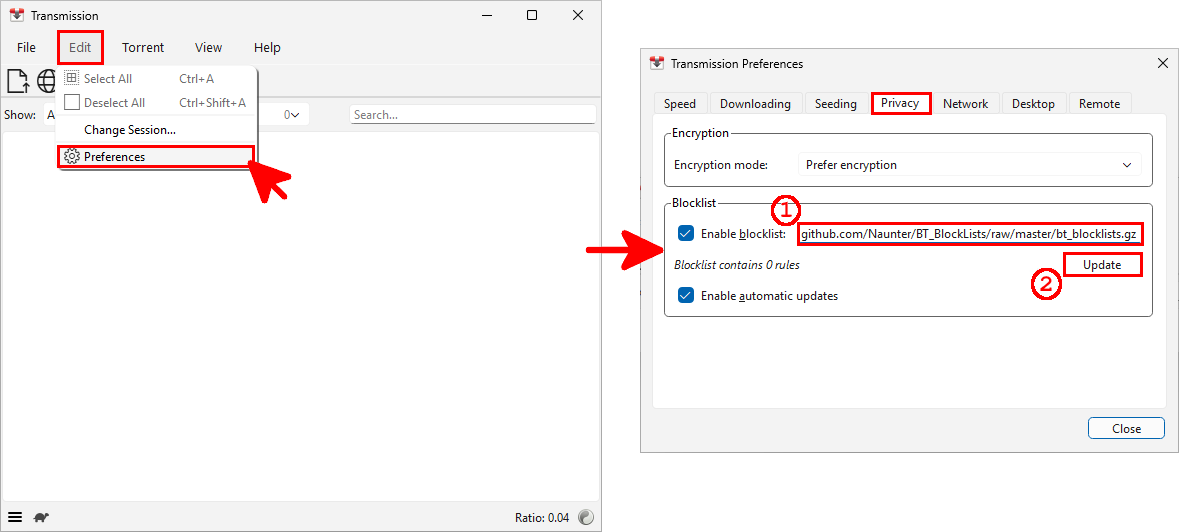
Transmission allows you to use an external blocklist. A blocklist contains IP addresses or IP ranges that Transmission should avoid connecting to. I personally use the BT_BlockLists project on GitHub, which combines several blocklists into a single list. Its purpose is to prevent connections to IP addresses considered unwanted or potentially problematic. You can use this list or choose another maintained blocklist if you prefer.
- To configure a blocklist in Transmission, go to the Edit menu, then open Preferences. In the Privacy tab, enable the blocklist option and paste the following URL:
https://github.com/Naunter/BT_BlockLists/raw/master/bt_blocklists.gz(1). Then click Update (2). You can also keep Enable automatic updates enabled so the list is refreshed automatically:
How to Improve BitTorrent Privacy
If anonymity is important to you, there are several options to consider. One approach is to use a network specifically designed to improve privacy, such as I2P. I have written a separate article about using I2PSnark to download torrents anonymously. However, standard BitTorrent torrents are not directly compatible with I2P torrents, and download speeds can be significantly lower.
If you prefer to continue using a standard BitTorrent client such as Transmission, another option is to route your traffic through a VPN that allows P2P traffic. A VPN can hide your public IP address from other peers by replacing it with the VPN server's IP address. I have no partnership with any provider (I'm not a YouTube influencer!), but examples include Mozilla VPN, Mullvad VPN, Proton VPN, and NymVPN.